Overview
The Signature app is used to electronically sign study data and track signing status.
In this study workspace, Signature provides two working tabs:
- View by Subject — sign and track status at subject level
- View by Form — sign and review at form level
Access Signature
Step 1: Open My Page
Log in and open My Page.
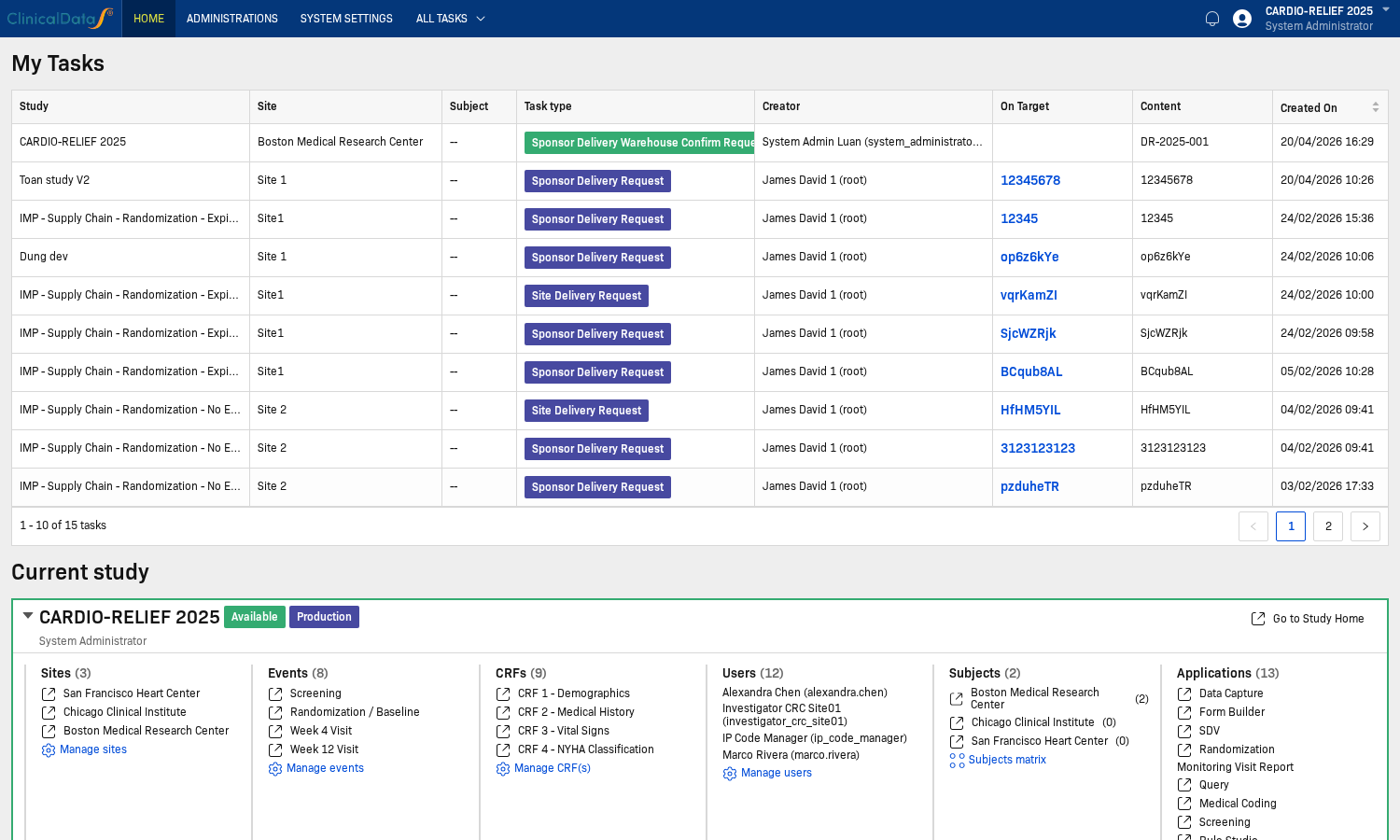
Step 2: Open the study home page
From Current study, click Go to Study Home.
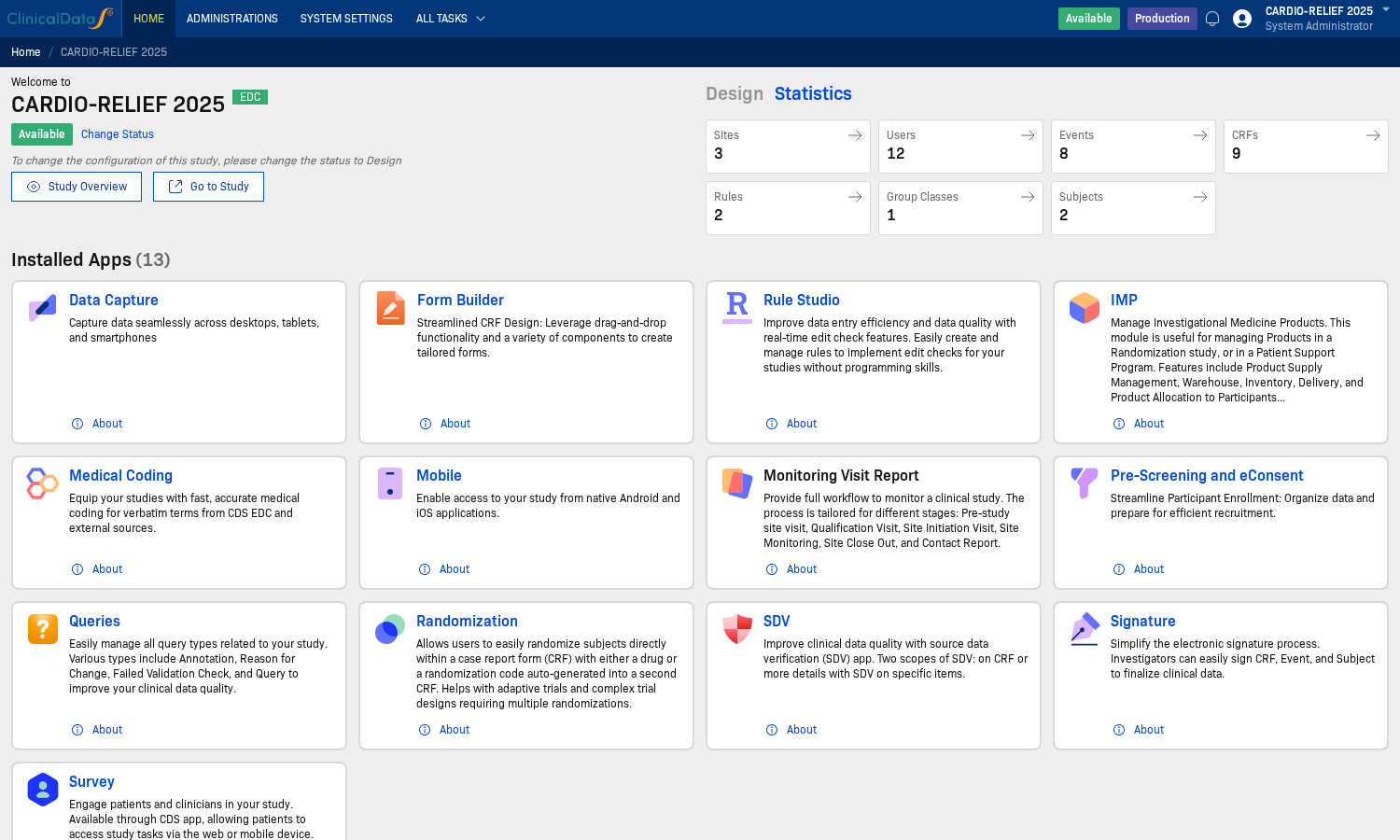
Step 3: Open Signature workspace
In the study workspace top menu, click Signature.
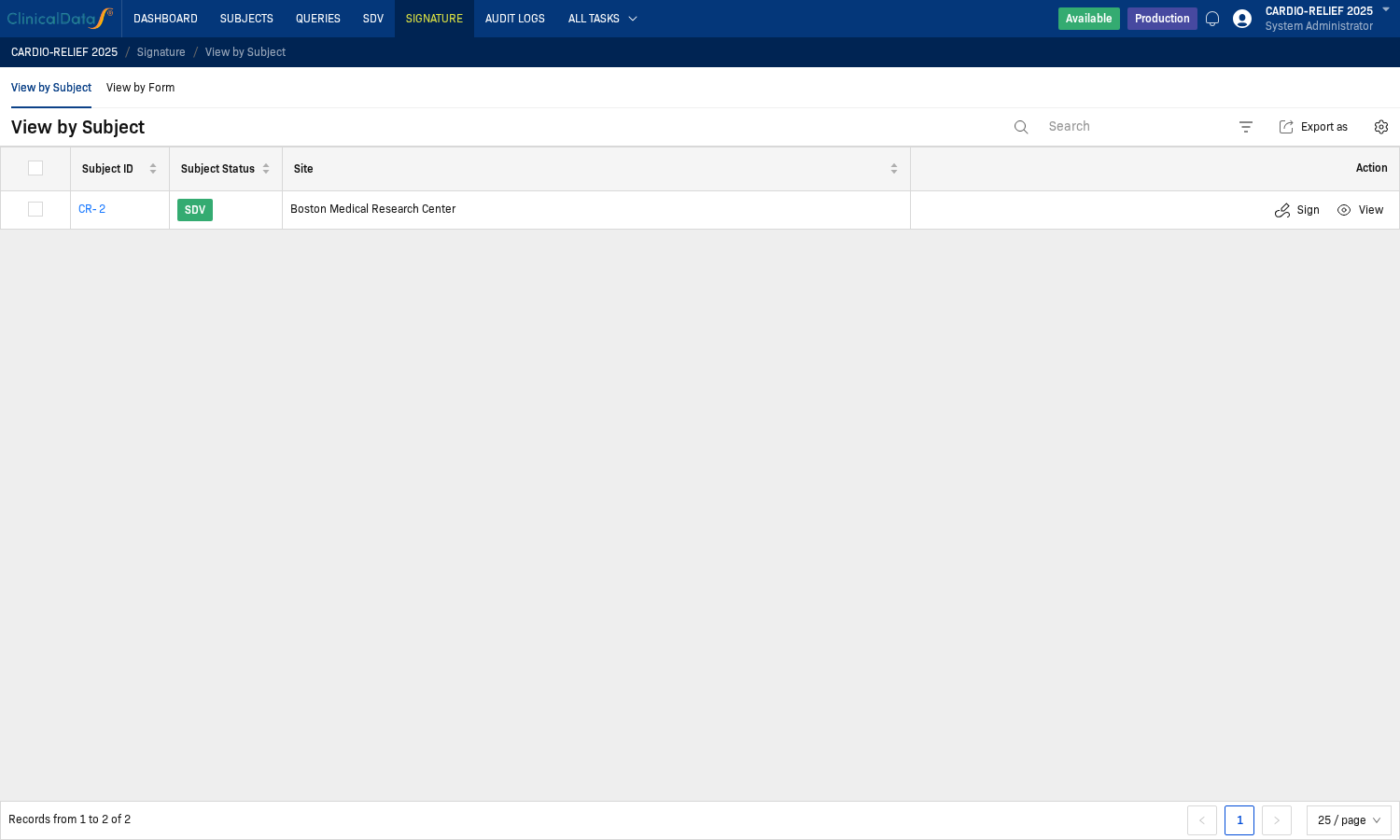
Step 4: Review Signature tabs and action columns
The Signature workspace shows View by Subject and View by Form tabs, search/export controls, and action buttons (for example Sign, View, Un-sign depending on current status).
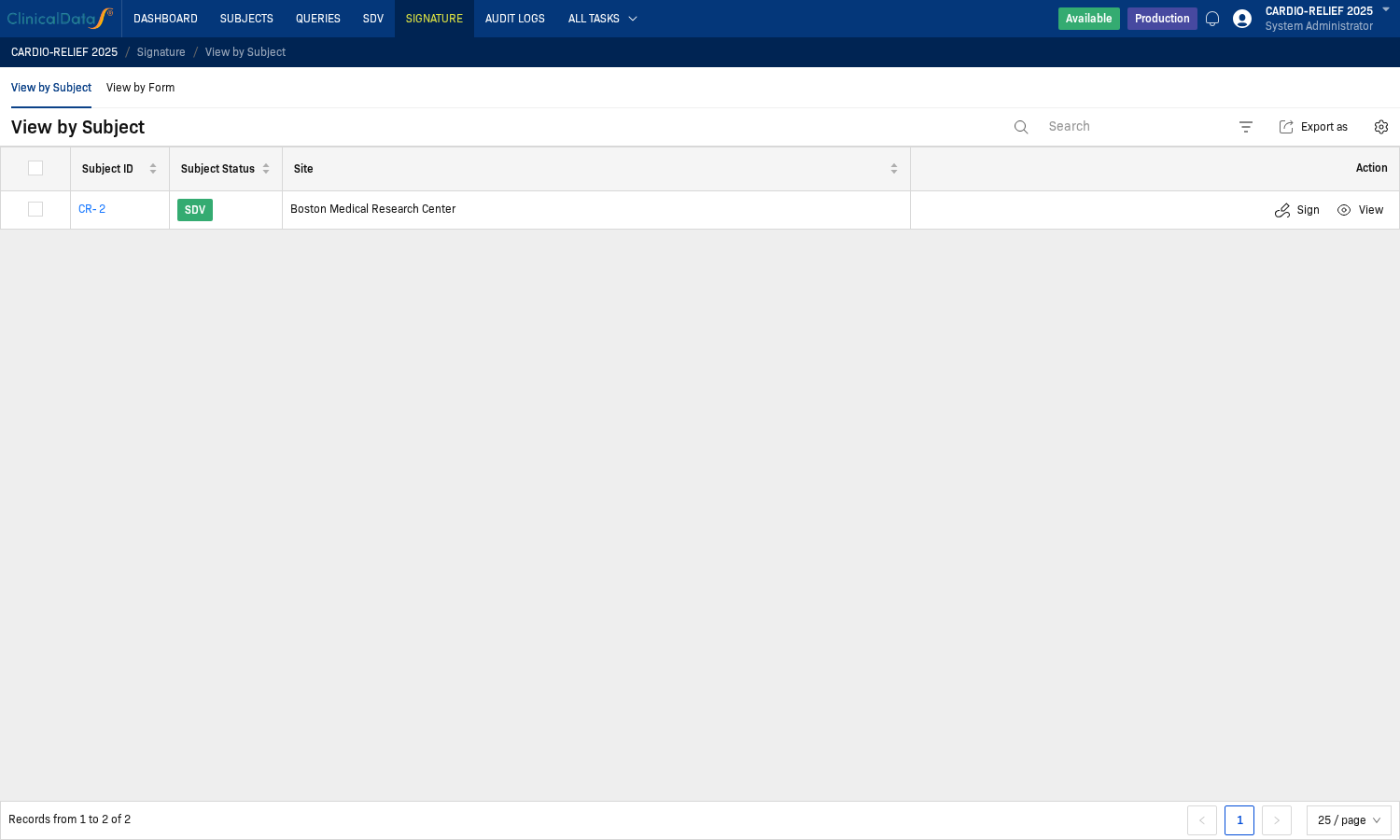
How to Sign (Subject)
Step 1: Open the subject signing list
In Signature -> View by Subject, locate the subject row you want to sign.
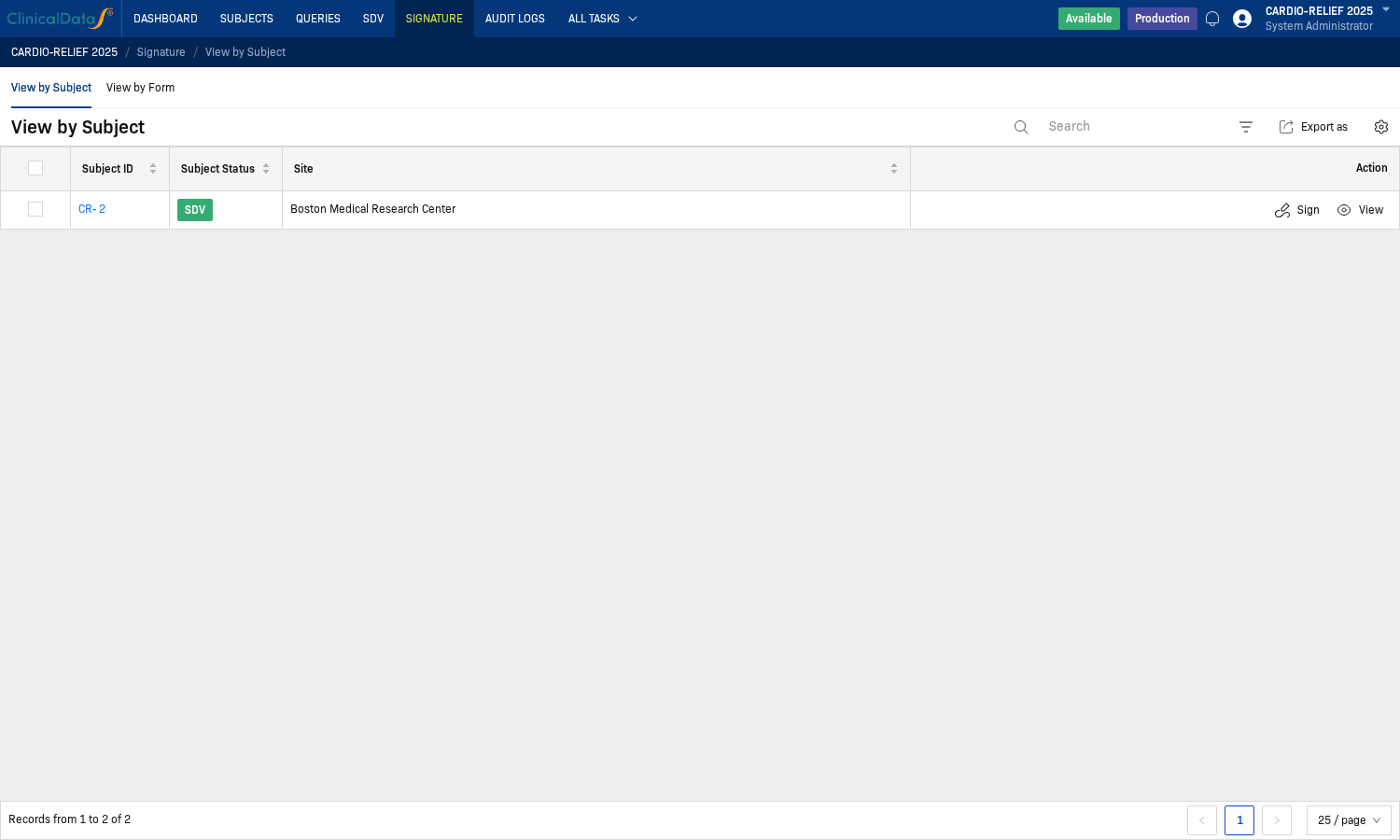
Step 2: Click Sign on the subject row
Click Sign in the Action column for that subject.
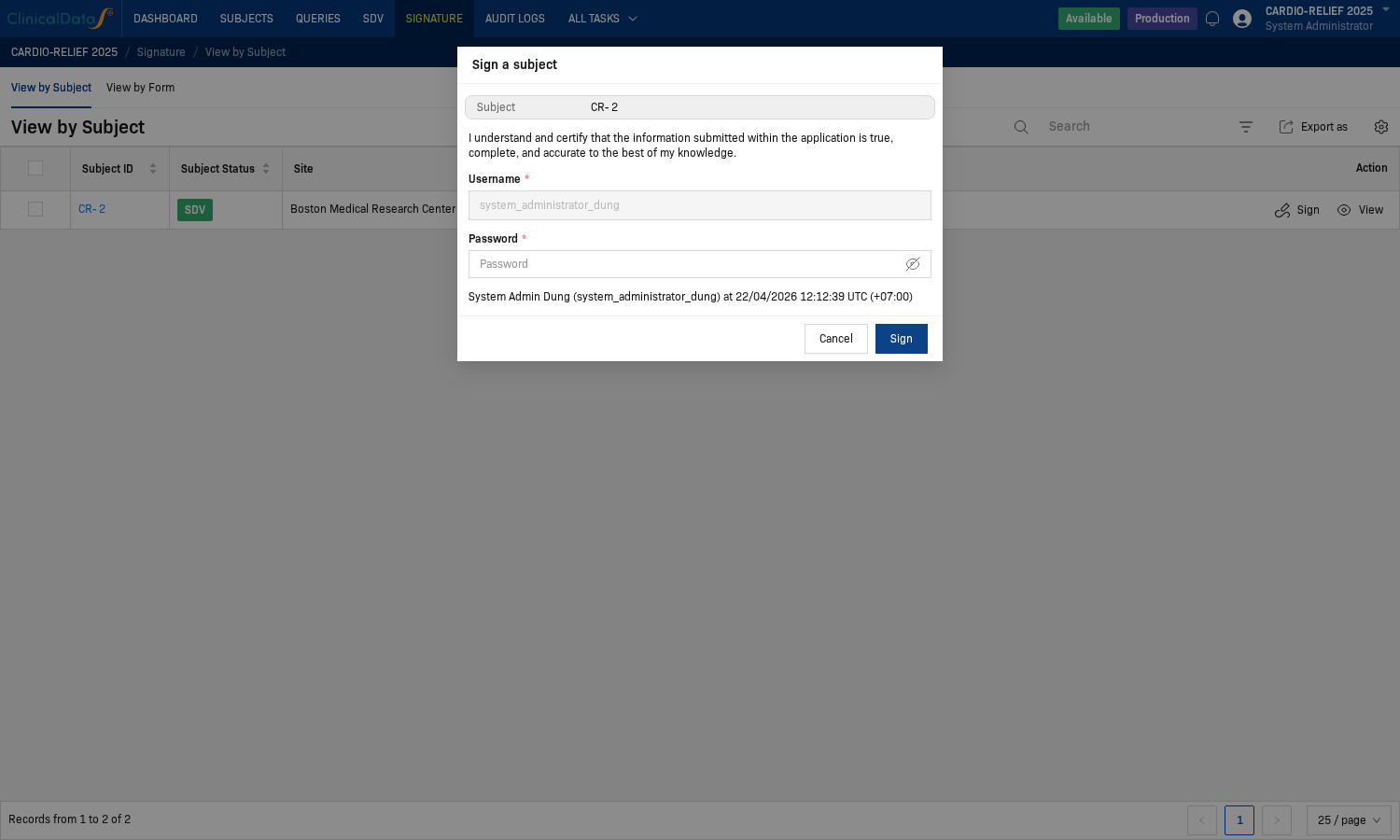
Step 3: Confirm statement and enter password
In the Sign a subject dialog:
- Review the certification statement
- Confirm the username shown
- Enter your account password
- Click Sign
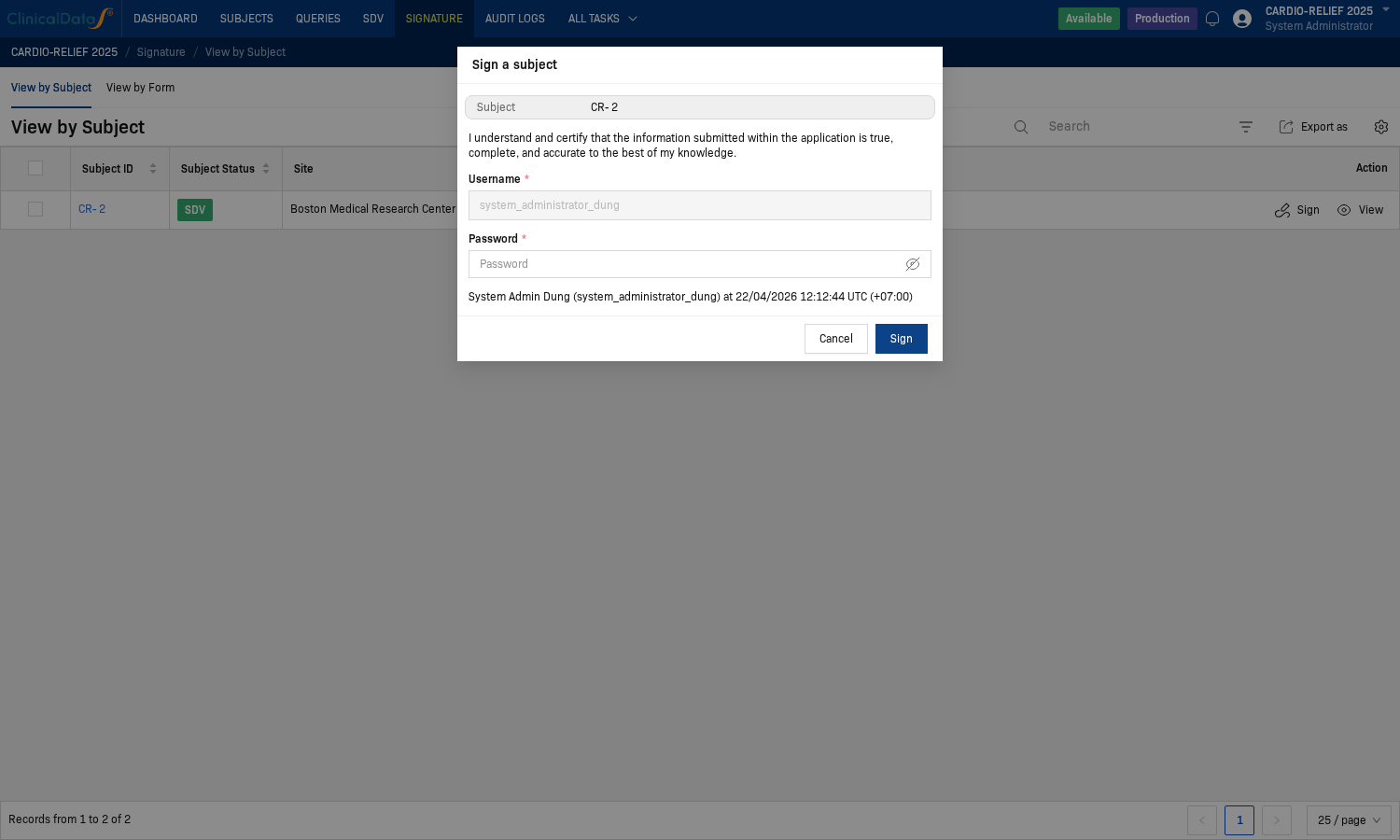
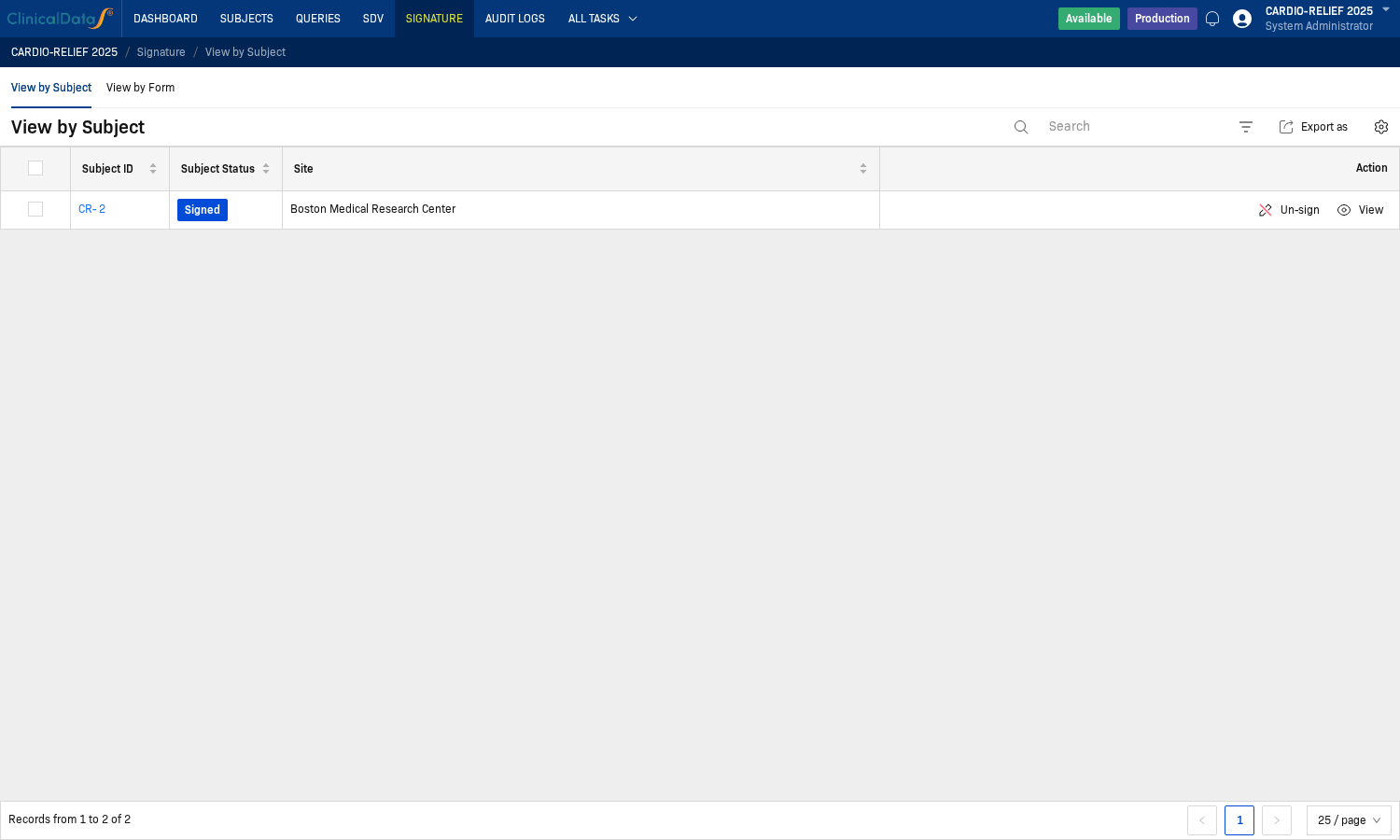
Step 4: Verify post-sign status
After successful signing, the row updates to Signed and action changes to Un-sign.
Audit and Verification
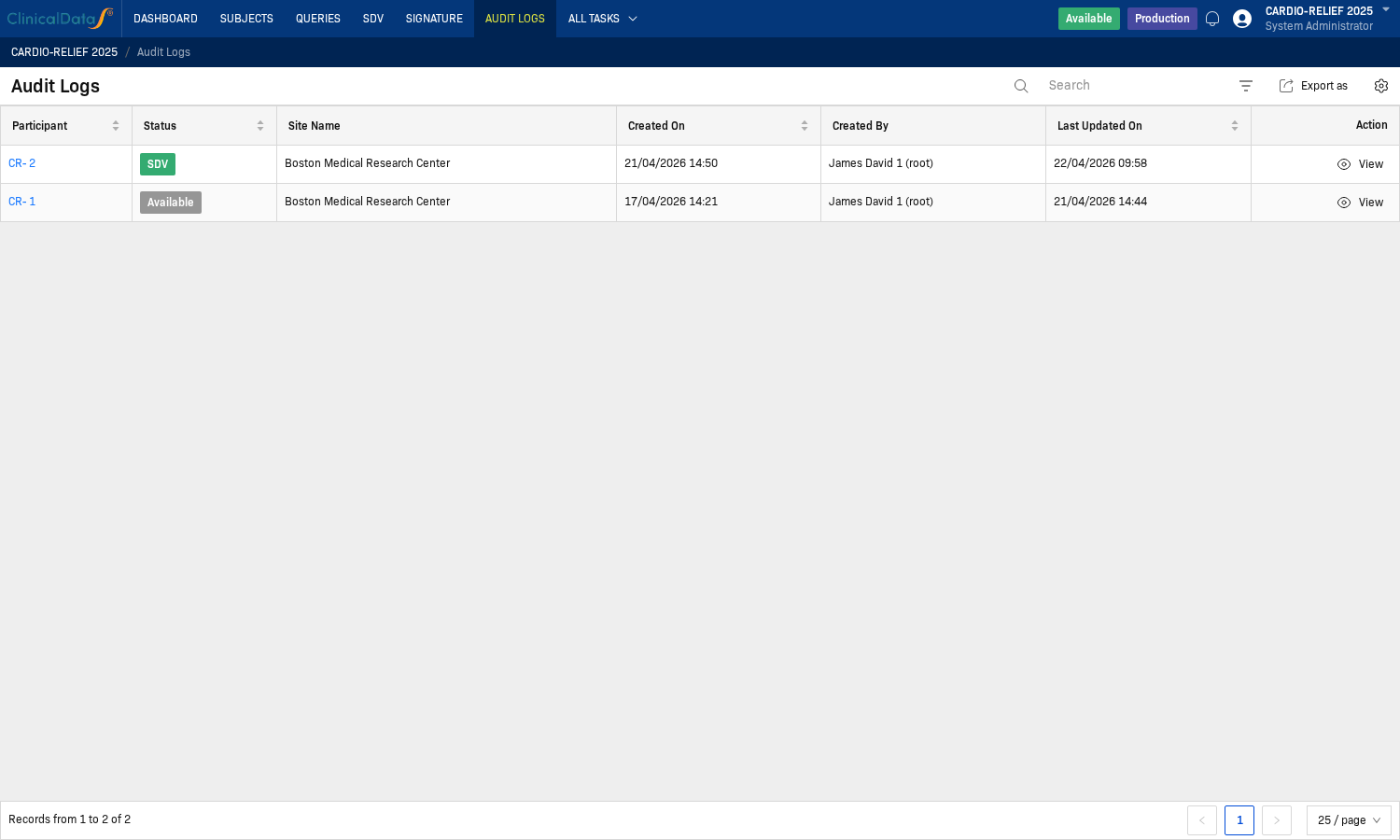
Use Audit Logs to review participant status and update history.
Notes
Signing requires your own credentials in the confirmation dialog. The app records user identity and timestamp as part of the signature action.
Documentation
- Configuration — Access path and behavior of the Signature configuration page