Overview
ClinicalDataS is a platform for managing clinical study operations, data capture, and study workflows in one place. After signing in, users can review assigned work, open study workspaces, and move between system-level and study-level areas from a consistent navigation header.
This page introduces the main navigation concepts so new users can quickly understand where to go first.
New to ClinicalDataS? Start Here
If you are setting up a new study for the first time, follow this recommended path:
- Create a new study — Enter study name, protocol ID, sponsor, and dates.
- Configure study parameters — Set subject ID format, date format, and event parameters.
- Create sites — Add participating research sites.
- Create visit events — Define the visit schedule (Screening, Baseline, Follow-up, etc.).
- Install apps — Enable the modules needed for your study (Form Builder, Randomization, Rule Studio, etc.).
- Configure Randomization — Set up blinding, algorithm, and treatment arms.
- Create Subject Group Classes — Define treatment arm codes for randomization.
- Add study users — Assign investigators, CRCs, and monitors.
- Build CRFs in Form Builder — Design data capture forms.
- Create rules in Rule Studio — Add auto-calculations, validations, and edit checks.
- Go Live — Transition the study to Production when setup is complete.
Header Navigation
Use the header menu at the top of the page to move between key areas:
- Home: Opens your personal landing page (My Page).
- Administrations: Opens administrative areas such as study and user management.
- System Settings: Opens platform-level configuration areas.
- All Tasks: Opens the broader task list view.
The user menu in the top-right corner provides profile/session actions and context for the role you are currently using.
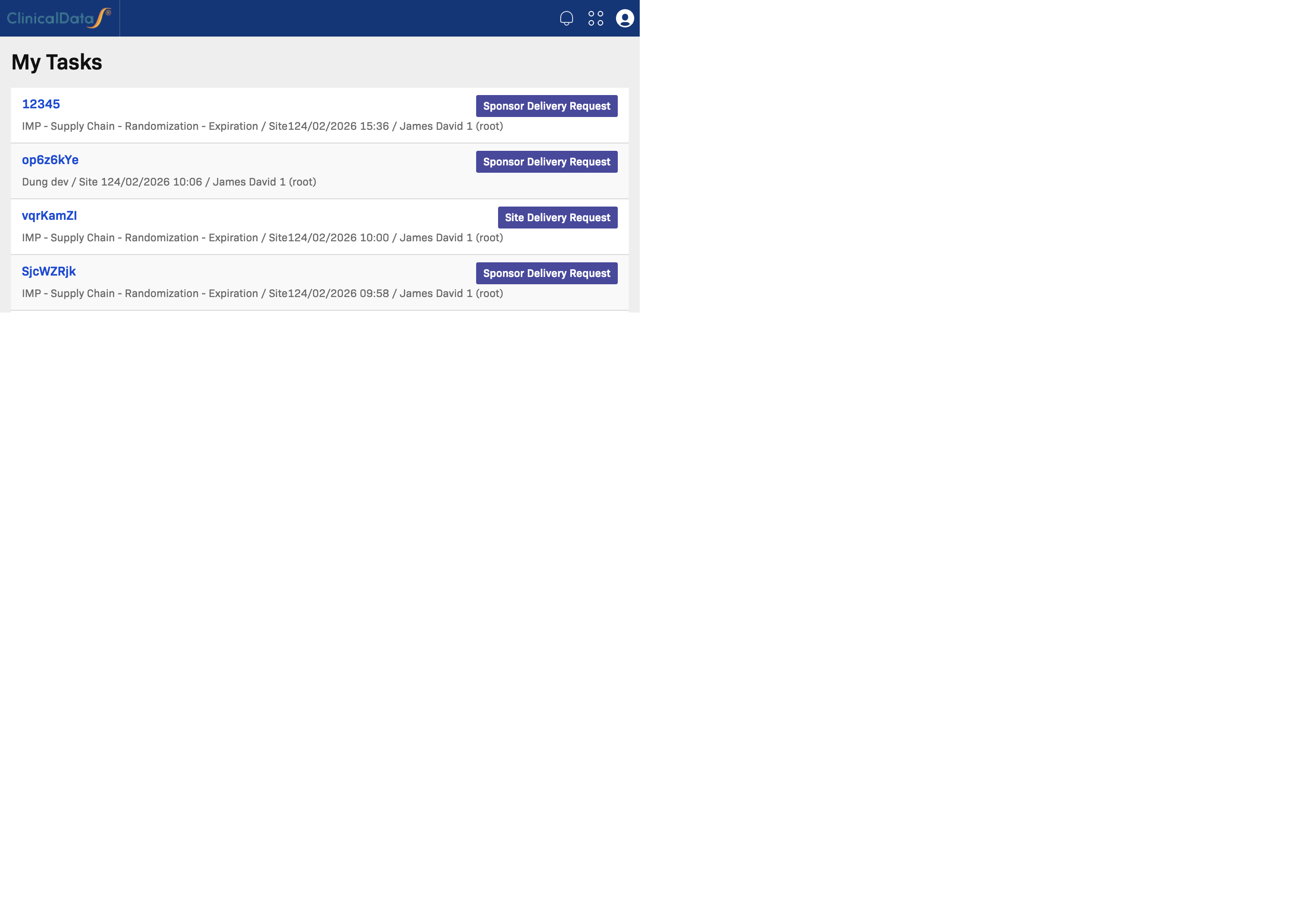
My Tasks
My Tasks shows work assigned to you or requiring your attention.
Use this section to:
- See what needs action now
- Open task targets directly (for example, subject or query links)
- Track task details such as study, site, type, and created date
For most users, this is the first place to review daily priorities.
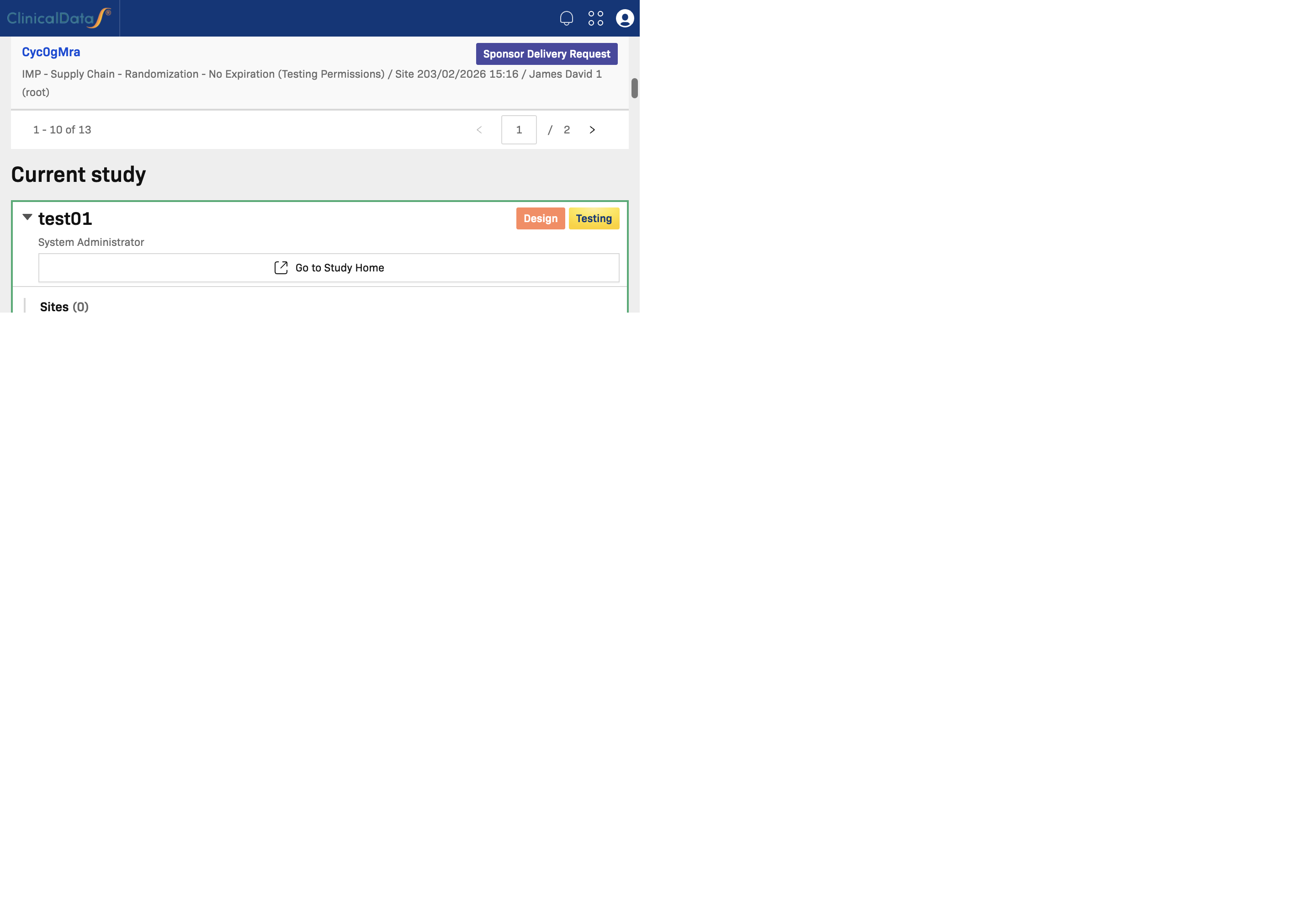
Current Study
Current Study is the latest study that you are currently working on.
Use this section to:
- Continue work in your active study
- Open Go to Study Home to return to the study workspace
- Access quick shortcuts for sites, events, CRFs, users, subjects, and applications
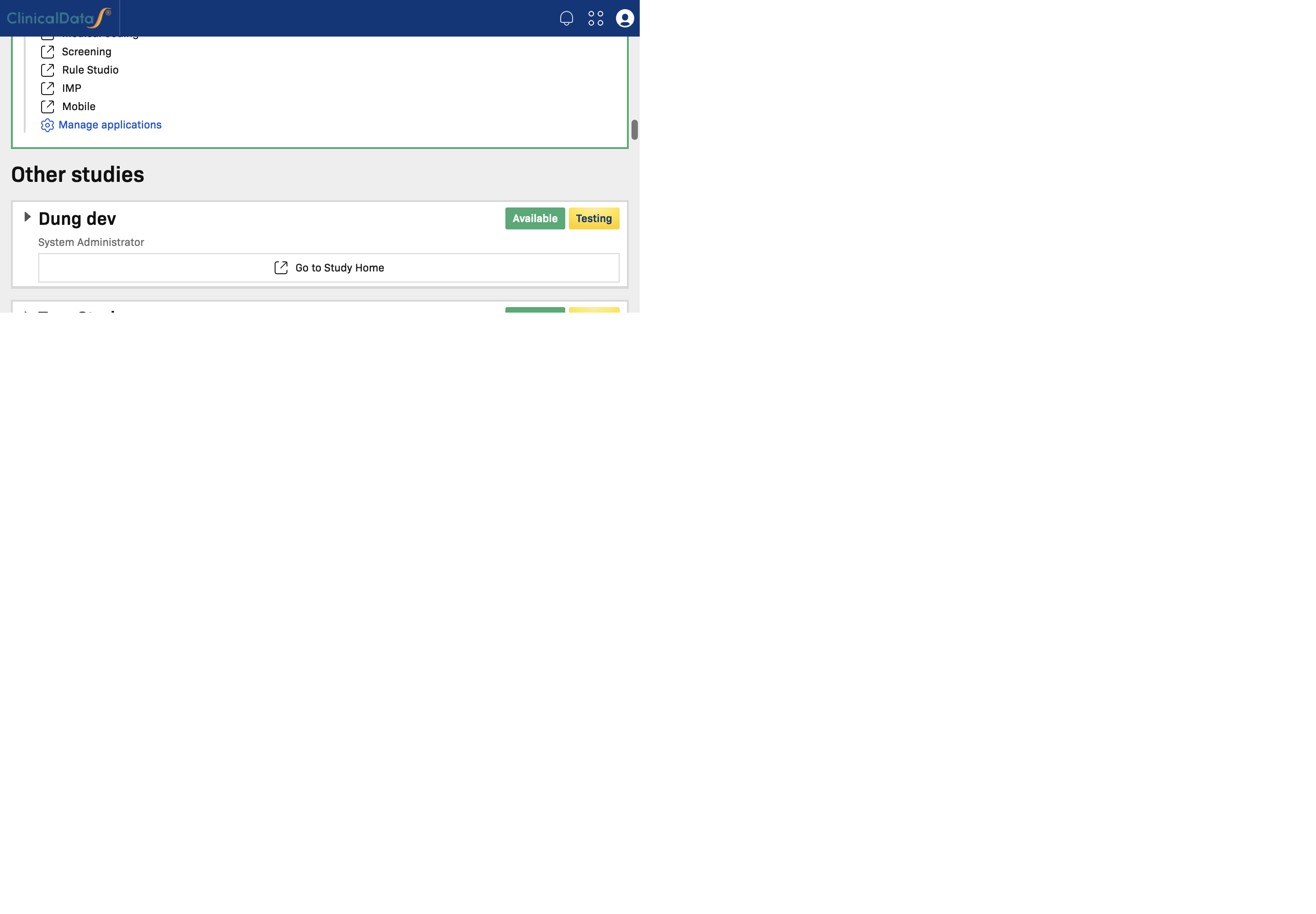
Other Studies
Other studies lists studies that are assigned to you and available to access.
Use this section to:
- Switch from your current study to another assigned study
- Review high-level study status and summary counters before opening it
Learn More
- My Page — Review tasks, open your current study, and switch to other studies
- Study Setup Guide — Comprehensive setup flow for a new study