Every user signs in to ClinicalDataS with a personal username and password. This page covers the sign-in screen, the password change required at first sign-in or after expiry, two-factor authentication, recovery of a forgotten username or password, account lockout, and sign out. It applies to every role.
The password rules, the two-factor requirement and the lockout rule are set for the whole platform by the System Administrator. See Authentication Methods and Login & Logout.
Sign in
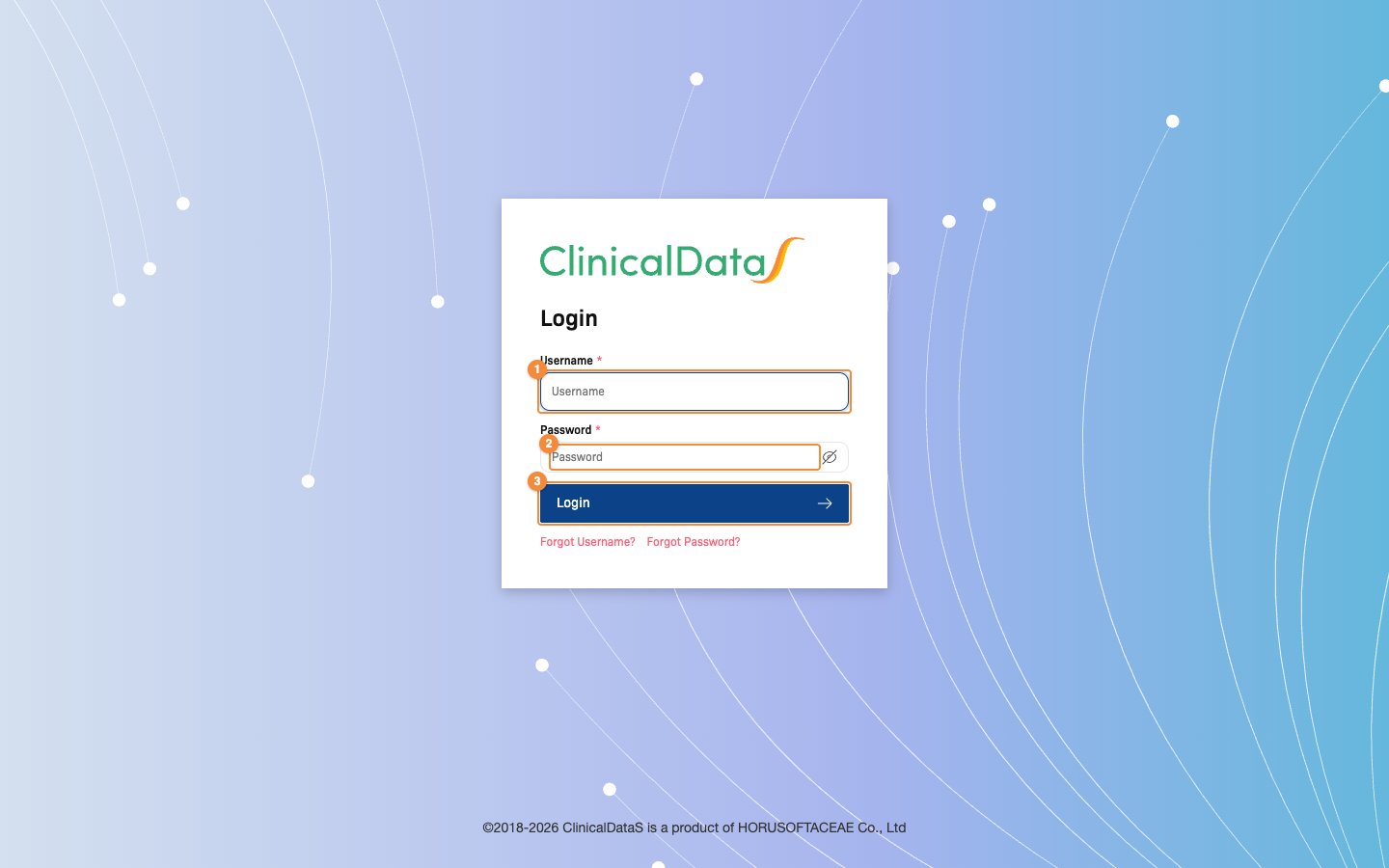
- Username of your account
- Password of your account
- Login signs you in
- Open the ClinicalDataS address provided by your organization. The Login page opens.
- Enter your Username and Password.
- Click Login.
After a successful sign-in, ClinicalDataS opens the home page, or the page you were trying to open before you signed in. Depending on your account and the platform settings, one of the following screens can appear first:
| Screen | When it appears | See |
|---|---|---|
| Change Password | Your password was set by the system (for example, a new account) or has expired. | Change your password at sign-in |
| Authentication code | Two-factor authentication is set up on your account. | Two-factor authentication |
| Enable two-factor authentication | Two-factor authentication is required and is not yet set up on your account. | Two-factor authentication |
When your session expires
If your session ends while you are working, ClinicalDataS shows the message "Session expired. Please login again." and returns to the Login page. Sign in again to continue; ClinicalDataS returns you to the page you were on.
Change your password at sign-in
The Change Password screen appears after you enter your username and password when your current password was set by the system or has expired. You must set a new password before you can continue.
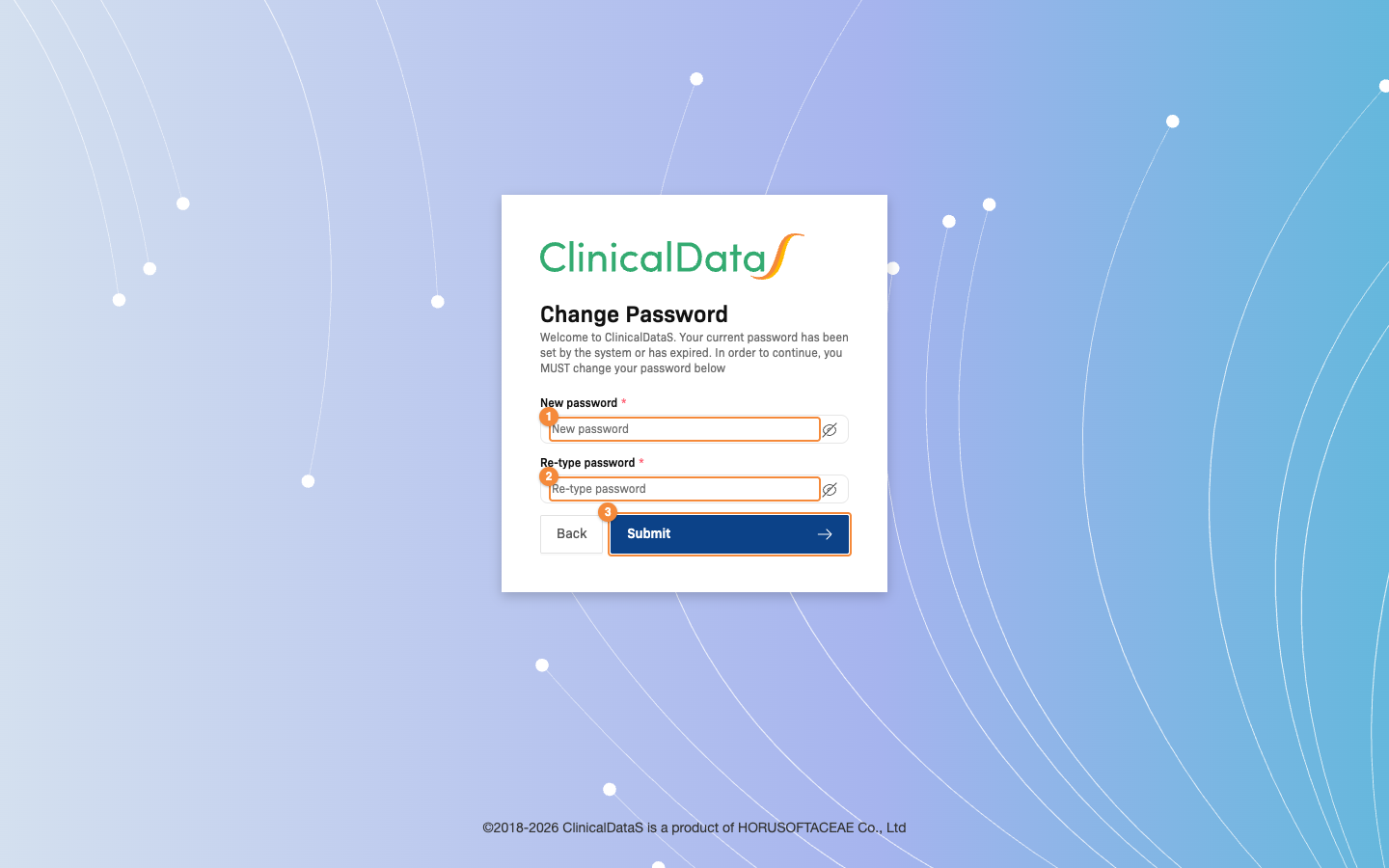
- New password
- Re-type password: the same password again
- Submit saves the new password and continues the sign-in
- Enter the new password in New password.
- Enter the same password in Re-type password.
- Click Submit.
The new password must meet the password rules of the platform and must differ from the current password. When the change succeeds, ClinicalDataS shows "Change password successfully" and continues the sign-in. Back returns to the Login page without changing the password.
Two-factor authentication
When two-factor authentication is set up on your account, the Authentication code screen appears after your username and password are accepted.
- Open your authenticator app and read the current code for ClinicalDataS.
- Enter it in Authentication code. If you no longer have access to your device, enter one of your recovery codes instead.
- Click Verify Code.
If the platform requires two-factor authentication and it is not yet set up on your account, the Enable two-factor authentication wizard opens instead. Complete the wizard to finish signing in.
Recover a forgotten password
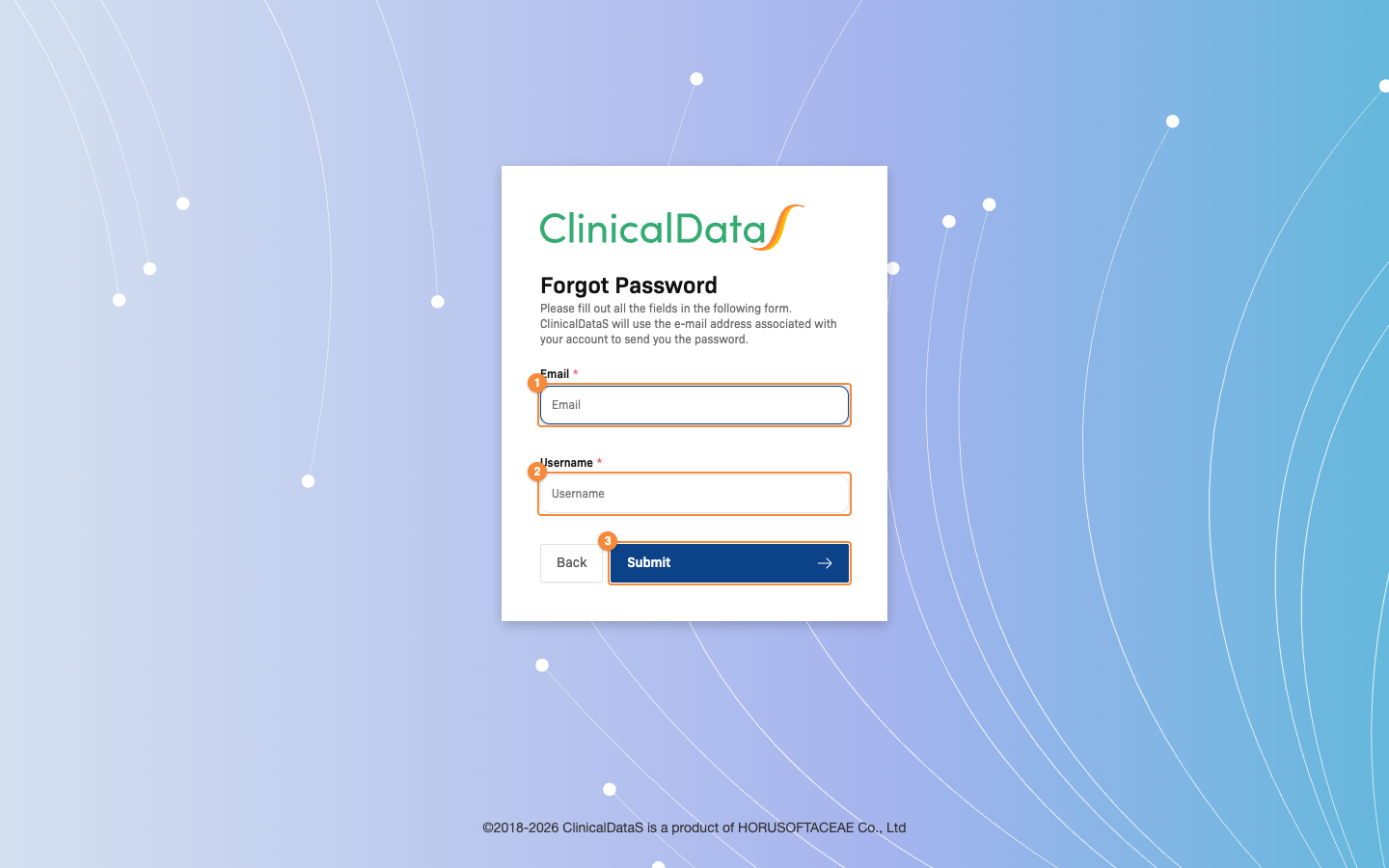
- Email address of your account
- Username of your account
- Submit sends the password reset email
- On the Login page, click Forgot Password?. The Forgot Password page opens.
- Enter the Email address and the Username of your account.
- Click Submit.
ClinicalDataS confirms with "If your account exists, you will get an email with instructions on resetting your password" and returns to the Login page. If the username and email address do not belong to the same active account, the form shows an error instead. Back returns to the Login page without sending an email.
Set a new password from the email
The password reset email contains a link to the Reset Your Password page.
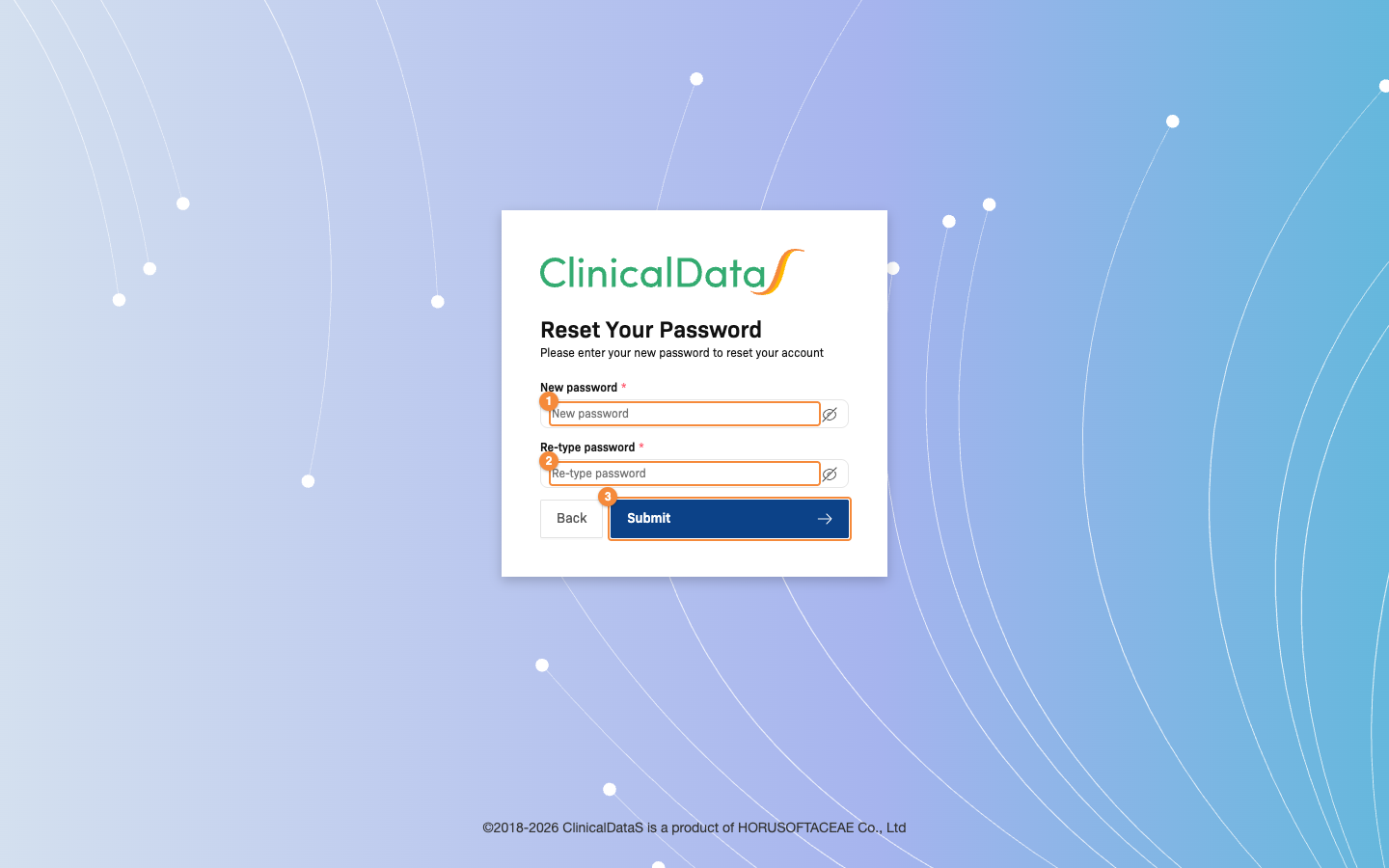
- New password
- Re-type password: the same password again
- Submit sets the new password
- Open the link in the password reset email.
- Enter the new password in New password and again in Re-type password.
- Click Submit.
ClinicalDataS shows "Reset password successfully" and opens the Login page. Sign in with the new password.
Each reset link can be used once and expires after a set time. If the link has expired or was already used, request a new one with Forgot Password?.
Recover a forgotten username
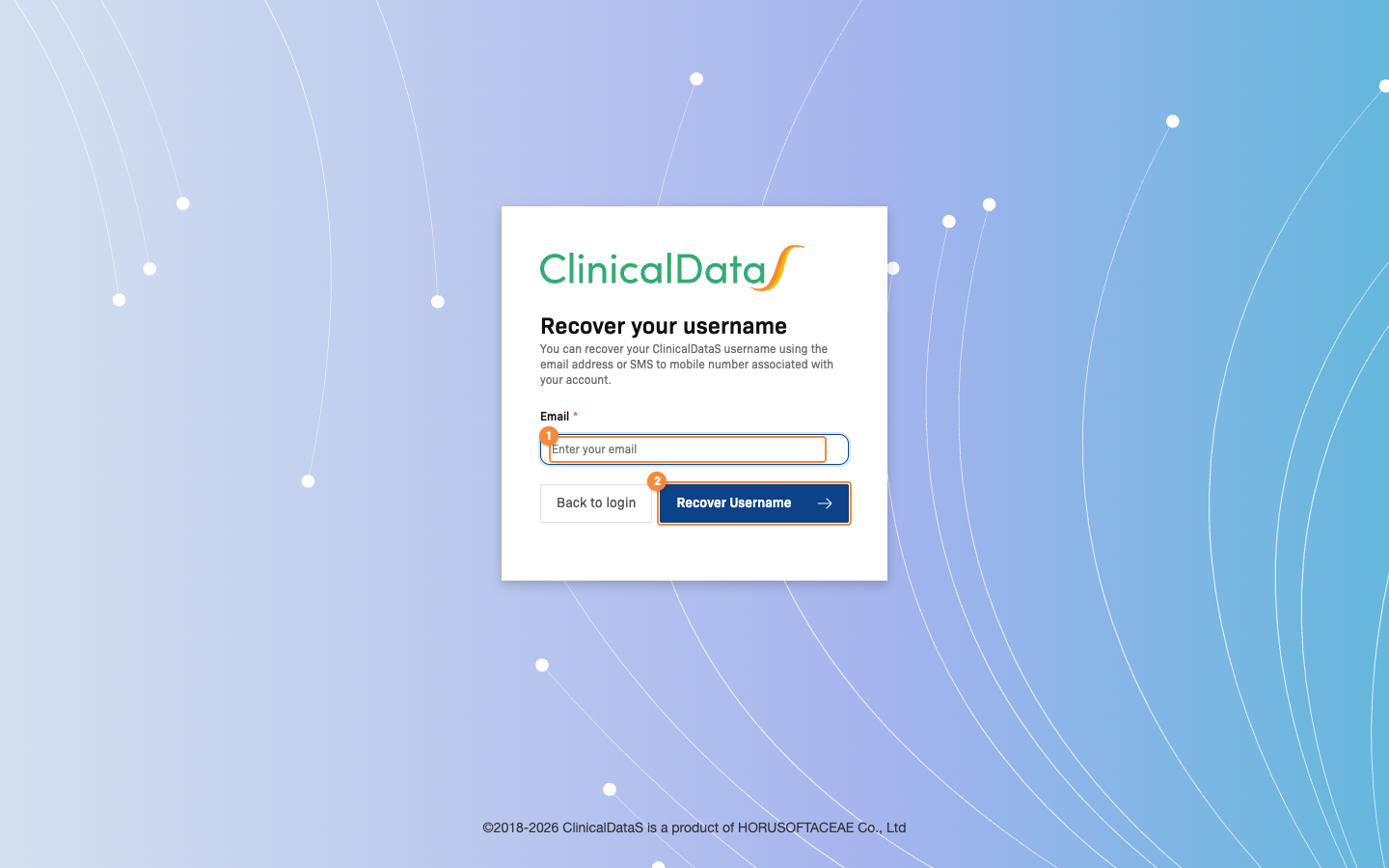
- Email address of your account
- Recover Username sends your username by email
- On the Login page, click Forgot Username?. The Recover your username page opens.
- Enter the Email address of your account.
- Click Recover Username.
ClinicalDataS confirms with "Check your email, the username(s) will be sent to your email if your account exists." and returns to the Login page after a few seconds. Back to login returns without sending an email.
Account locked after failed attempts
When the System Administrator has turned on account lockout, ClinicalDataS counts consecutive incorrect passwords for each account:
- After an incorrect password, the Login page shows a warning about your failed attempts.
- When the number of failed attempts reaches the limit set for the platform, the account is locked and sign-in fails with the message "Account is locked", even with the correct password.
- A successful sign-in before the limit is reached resets the count.
To unlock an account that was locked by failed attempts, recover your password and set a new one. Setting the new password unlocks the account. If you cannot reset the password, contact your System Administrator.
Sign out
- Click the profile icon in the header. The profile panel opens.
- Click Logout.
ClinicalDataS ends your session and opens the Login page.