Visit Detail
Visit Detail is the full record for a single visit (one event instance) of a single subject — the event's status, all CRFs assigned to it, its open queries, its documents, and, when applicable, its IMP/randomization data. It is the event-centric counterpart to Subject Detail: Subject Detail reviews one subject across all of their events, while Visit Detail reviews one event across a single subject without navigating the full subject casebook.
Path: Study Name → Visits → View on a visit row
Viewing Visit Detail has no dedicated permission requirement beyond general access to the study — any role with access to the study can open it. Only the status-change and record actions described below are restricted by role.
Header
The header shows the event name and description, a status badge, and:
- Continue Data Entry — a deep link into the visit's in-progress CRF (the first CRF that has been started but not completed), or the first incomplete CRF if none is in progress, or the event's first CRF if data entry has not started at all.
- Show Audit — opens the visit's Audit Trail in a side panel (see Audit Trail below).
- Additional actions, shown only when the current visit status and the viewing role allow them. Unless noted otherwise, these actions are available to the Clinical Research Coordinator, Investigator, Study Administrator, and System Administrator roles by default (a study can grant different roles):
| Action | Effect | Shown when |
|---|---|---|
| Complete | Marks the visit Completed | The visit is eligible to transition to Completed |
| Stop | Marks the visit Stopped | The visit is eligible to transition to Stopped |
| Source Data Verify | Marks the visit as source-data-verified | Manual visit-level SDV is allowed on the study, the visit is eligible for the transition, and the role can both enter data and perform Source Data Verification — by default only the Study Administrator and System Administrator |
| Lock | Locks the visit against further edits | Always, for the roles above |
| Unlock | Unlocks a locked visit | The visit is currently locked |
| Remove | Soft-deletes the visit | Always, for the roles above |
| Restore | Restores a removed visit | The visit is currently removed |
| Delete | Permanently deletes the visit | The visit has no CRF data entered |
Stat Row
| Field | Description |
|---|---|
| Visit Type | The event type |
| Scheduled Date | The date the visit was scheduled for |
| Actual Visit Date | The date the visit actually took place |
| CRF Progress | A progress bar showing completed vs. total CRFs for this visit |
| Open Queries | The number of open queries on this visit |
| SDV Status | The visit's Source Data Verification status |
| Signature | The visit's electronic signature status |
| Lock Status | Locked or Unlocked |

What this should show: the Visit Detail header — event name, status badge, the Continue Data Entry / Show Audit buttons, the status-change action menu, and the full stat row.
Visit Information
A card showing operational information collected at the visit level:
| Field | Description |
|---|---|
| Visit Performed By | The user who last updated the visit |
| Visit Location | The site or location where the visit took place |
This card always shows exactly these two fixed fields, taken from audit metadata — it is not configurable. A separate, configurable Visit Information data set (Start Date, End Date, Location, and any custom fields the study defines) is documented in Data Entry — Visit Information; do not confuse the two just because they share a name.
What this should show: the Visit Information card with its two fixed fields (Visit Performed By, Visit Location).
Related Subject
A card giving the subject context for this visit:
| Field | Description |
|---|---|
| Subject ID | Linked to Subject Detail |
| Site | The site the subject is enrolled at |
| Subject Status | The subject's current status |
| Enrollment Date | The subject's enrollment date |
Use Open Subject Detail to move from this visit into the subject's full record.
What this should show: the Related Subject card with Subject ID, Site, Subject Status, and Enrollment Date, and the Open Subject Detail button.
CRFs
Every CRF assigned to this visit, shown directly on the page:
| Column | Description |
|---|---|
| CRF Name | Opens the form for data entry |
| Status | The CRF's current status, for example Entry Complete or Not Started |
| Required | Whether the CRF is required for this visit |
| Started | Whether data entry has begun |
| SDV | Verified or Unverified. Shown only when Source Data Verification is enabled for the study |
| Queries | Whether the CRF has any queries |
| Signature | Signed or Unsigned. Shown only when electronic signature is enabled for the study |
| Action | View opens the CRF |
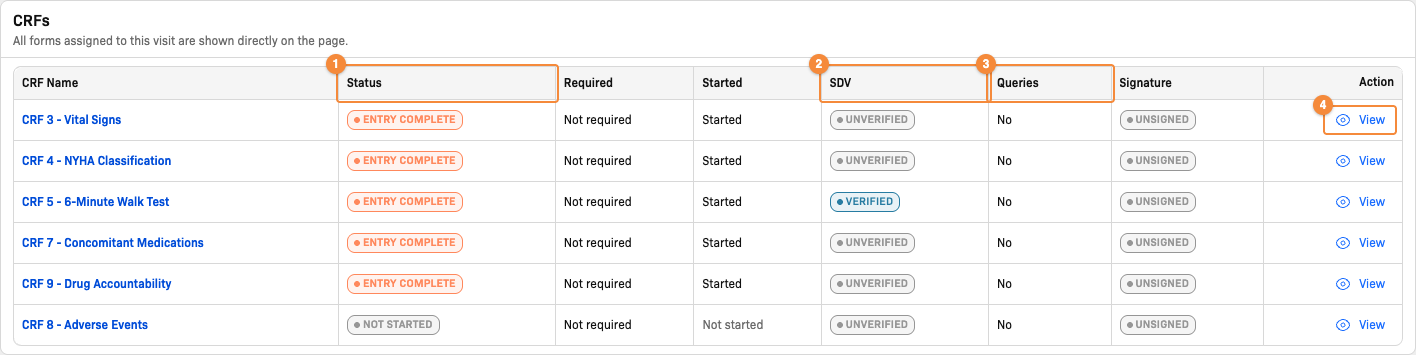
- Check the status of each CRF
- See whether each CRF has been source-data-verified
- See whether each CRF has queries
- Open the CRF
Queries & Notes
Shown only when the visit has open queries. It lists this visit's open queries — the discrepancies raised against this subject for this event, filtered to status New. This is a narrow, visit-scoped view; for the full query lifecycle (creating, answering, closing, and reopening a query), see Queries.
What this should show: the Queries & Notes table for a visit with multiple open queries, showing the CRF/field each query is raised against.
Documents
Shown when the event's attachment setting is enabled, or when the visit already has attached files. This is visit-level document storage — separate from any attachments stored on an individual CRF.
- Upload — available unless the study is in view-only mode.
- Preview — open any attached file without downloading it.
What this should show: the Documents section with a few uploaded files and the Upload button.
IMP / Randomization
Shown only when the visit has an associated IMP/randomization product.
| Field | Description |
|---|---|
| Status | The dispense/randomization status for this visit |
| Kits Number | The kit(s) assigned |
| Dispensed By | The user who performed the dispense |
| Dispense Date | The date of dispensing |
Treatment-arm identity stays hidden for blinded roles when study blinding is enabled.
What this should show: the IMP/Randomization card for a dispensed visit, with the Study Group masked for a blinded role.
Audit Trail
Opened from the Show Audit header action, the Audit Trail is a side panel showing the visit-level change history — separate from the subject-level Audit Logs available from Subject Detail. Each entry shows the old value and the new value for a change, who made it, and when. Filter by date range, action type, user, or entity.
What this should show: the Audit Trail side panel opened from Show Audit, with several change entries and the date range / action type / user filters visible.
Related Documentation
- Visits — the cross-subject visit list this page is opened from
- Subject Detail — the full subject record, reachable via Open Subject Detail
- Data Entry — CRF data entry, Subject Information, and the configurable Visit Information data set
- Queries — the full query lifecycle