The Study Administrator uses the Email Template page to customize the subject and content of the emails that the study sends — for example, notifications about Subject events, operational emails and IMP / pharmacy emails. Only templates for the modules enabled in the study are listed. Account emails, such as the password reset email, are managed for the whole platform on System Email Templates.
Available to:Study AdministratorSystem Administrator(default roles — your study may differ) The Email Template application must be installed on the study. For the full permission list, see the Permission Matrix.
- Edit Allowed: every study status except Locked, including Frozen.
- Read-Only: study in Locked status. Templates can be opened and previewed, and Save is disabled with the tooltip "The study is locked, so its email templates cannot be changed."
Access path
- Open Home; under Current study, click Go to Study Home.
- Open Email Template from Installed Apps.
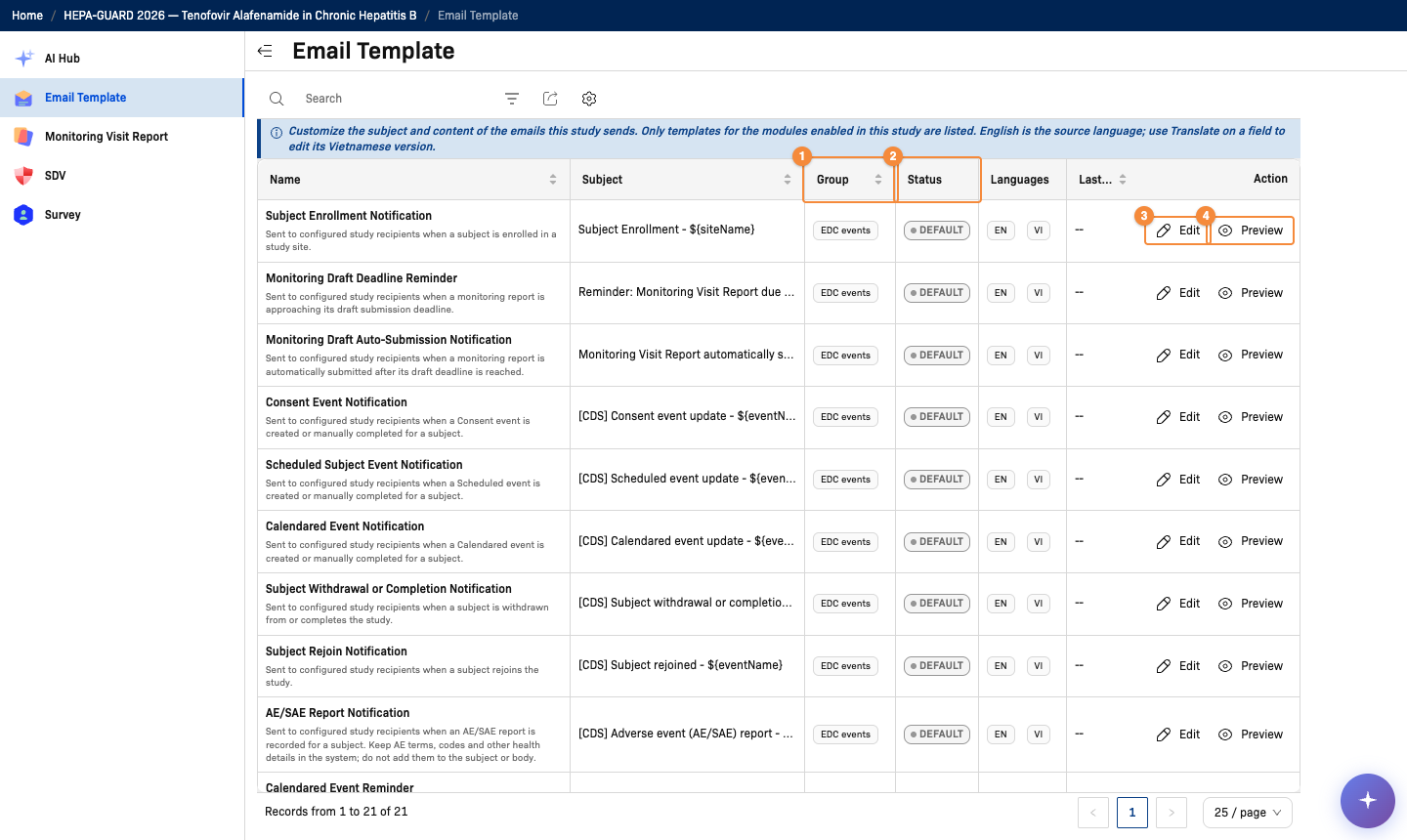
- Group of the template
- Status: Default or Customized
- Edit opens the template editor
- Preview shows the email as it is sent
Email templates are managed on the parent study only. When the page is opened at site level, it shows "Open the parent study to view and edit its email templates." When the Email Template application is not installed, the page shows that email templates are turned off for the study; uninstalling the application does not delete customized templates.
Email template list
| Column | Description |
|---|---|
| Name | Template name, with a short description of when the email is sent |
| Subject | Current email subject |
| Group | EDC events, Operational or IMP / Pharmacy |
| Status | Default — the standard text is used. Customized — the template has been edited for this study |
| Languages | Languages the template has text for: EN, and VI when a Vietnamese translation exists |
| Last updated | Date and time of the last change |
Filter the list by Group and Status. Each row has two actions: Edit (shown only for templates that can be edited) and Preview.
Edit a template
- Click Edit on the template row. The Edit email template dialog opens.
- Change the Subject (up to 500 characters) and the Content. Both are required.
- Click View variables to see the variables you can insert, such as
${siteName}. ClinicalDataS replaces each variable with the real value when the email is sent. - Click Preview to check the email.
- Click Save.
ClinicalDataS adds the standard email header and footer automatically; the Content holds only the body of the email. After saving, ClinicalDataS shows "Template saved successfully. It is used for the next emails sent." Save stays disabled until you change something.
The editor always works on the English text. If you close the dialog with unsaved changes, the Leave Confirm dialog asks whether to Leave and discard the changes or Stay.
Notices in the editor
| Notice | Meaning and action |
|---|---|
| Someone else changed this template | Another user saved the template while you were editing it. Your draft stays in the editor, but Save is disabled. Copy any text you want to keep, then click Reload latest version; reloading replaces your draft. |
| This content will be converted when you save | The template was saved in an older format. Saving converts it to the current email format, and unsupported formatting may be removed. Check the preview before saving. |
Translate a template into Vietnamese
English is the source language of every template. A Vietnamese translation is optional; until it exists, Vietnamese emails use the English text.
- In the Edit email template dialog, click the language button above Subject or Content. It reads EN only when no Vietnamese text exists, and EN + VI when it does.
- In the Translate: Subject or Translate: Content dialog, enter the Vietnamese text beside the English source. Keep variables such as
${siteName}unchanged. - Click Save.
ClinicalDataS confirms with "Vietnamese translation saved."
Preview an email
Preview, from the template row or from the editor, opens the Preview email dialog. From the template row it shows the saved version; from the editor it shows your unsaved English text, tagged Draft — not saved. Select the preview language to switch between English and Vietnamese; when no Vietnamese translation exists, the Vietnamese preview shows the English text that Vietnamese emails currently use. Variables are filled with sample values, and the sender and recipient are sample data, not the real recipient list.