Overview
The System Administrator uses the Email Templates page in System Settings to customize the account emails that ClinicalDataS sends to users of every study — for example, the email with the password reset link. Emails sent by a particular study are customized on that study's Email Templates page instead.
Access this page via System Settings → Email Templates.
System Administrator Viewing and changing system email templates require the System Administrator role. For the full permission list, see the Permission Matrix.
Email template list
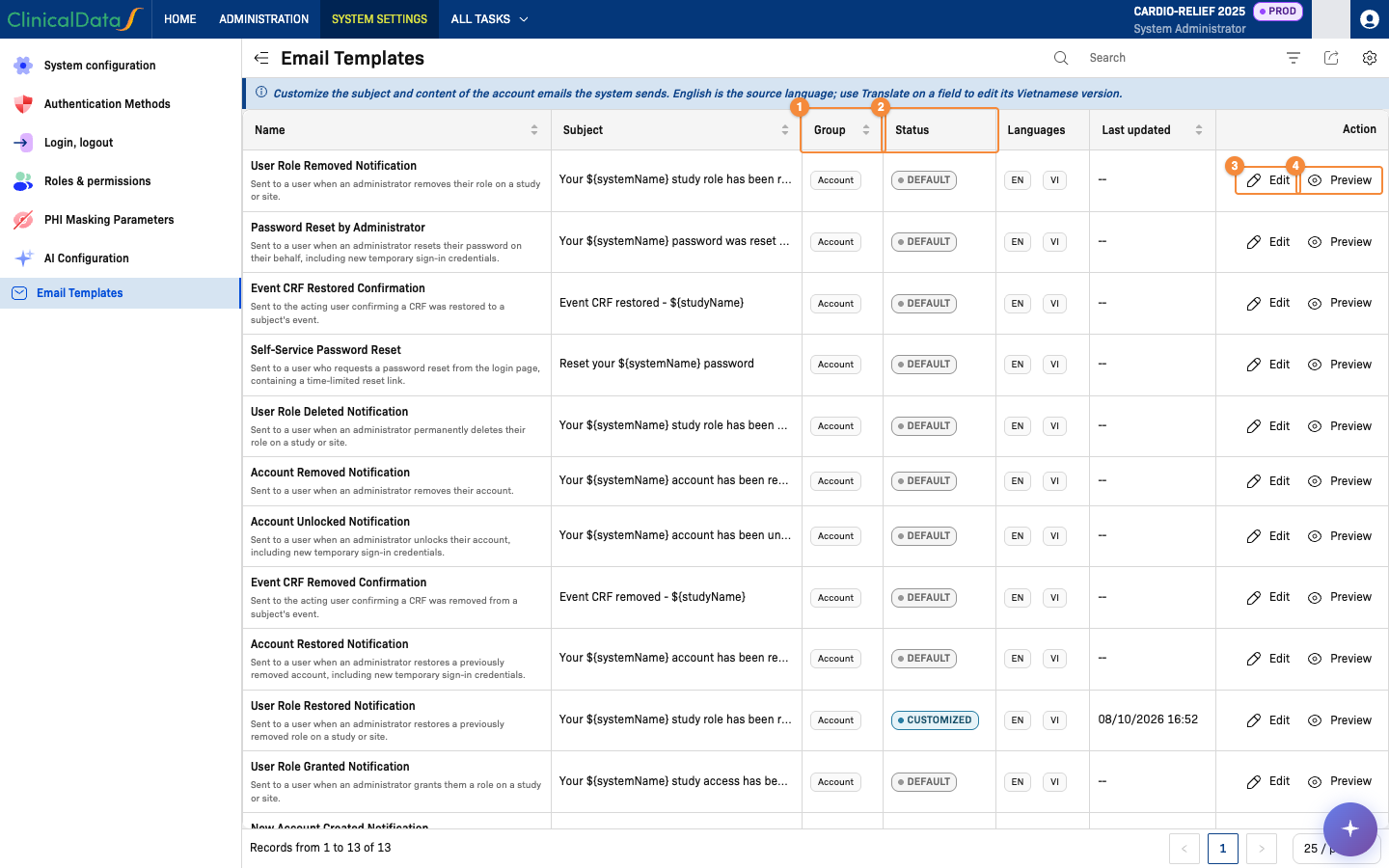
- Group of the template
- Status: Default or Customized
- Edit opens the template editor
- Preview shows the email as it is sent
| Column | Description |
|---|---|
| Name | Template name, with a short description of when the email is sent |
| Subject | Current email subject |
| Group | Account |
| Status | Default — the standard text is used. Customized — the template has been edited |
| Languages | Languages the template has text for: EN, and VI when a Vietnamese translation exists |
| Last updated | Date and time of the last change |
Filter the list by Group and Status. Each row has two actions: Edit and Preview.
Edit a template
- Click Edit on the template row. The Edit email template dialog opens.
- Change the Subject (up to 500 characters) and the Content. Both are required.
- Click View variables to see the variables you can insert. ClinicalDataS replaces each variable with the real value when the email is sent.
- Click Preview to check the email.
- Click Save.
ClinicalDataS adds the standard email header and footer automatically. After saving, ClinicalDataS shows "Template saved successfully. It is used for the next emails sent."
The editor, the Vietnamese translation dialog, the notices and the preview work as on the study page: see Translate a template into Vietnamese, Notices in the editor and Preview an email.