For the business definition of CDS Surveys, see CDS Surveys in Getting Started.
Setup is under CDS Surveys Setup. This page covers the participant survey worklist.
Typical workflow
- Open the study and go to Surveys in the top navigation.
- The Surveys tab displays the participant survey worklist — review sent and completed surveys.
- To set up survey delivery, open Configuration → Participant Group and create groups of study subjects to invite.
- Open Configuration → Survey Package to define which surveys are included, configure the notification emails, and set the sending schedule.
- Once configured, survey invitations are sent to participants and tracked in the Surveys worklist.
Participant Surveys layout (observed)
The Surveys landing page shows a table of participant survey records for the study.
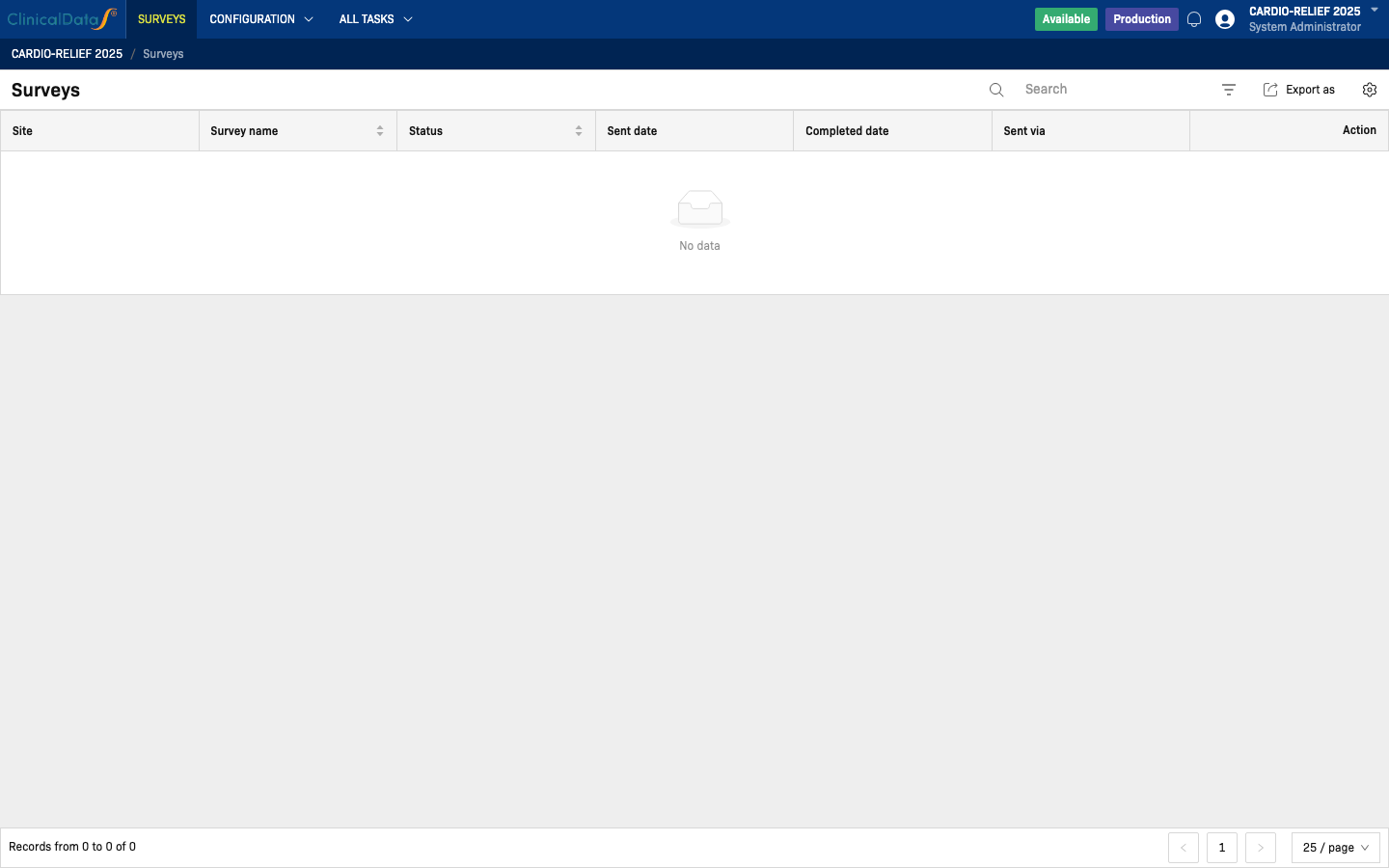
Top-level controls visible on the screen:
- Search — filter surveys by keyword
- Filter icon — additional column filters
- Export as — download the list
- Settings icon — column visibility
Table columns:
| Column | Description |
|---|---|
| Site | The site associated with the participant |
| Survey name | Name of the survey sent to the participant |
| Status | Delivery/completion status (for example, Sent, Completed) |
| Sent date | Date the survey was sent |
| Completed date | Date the participant completed the survey |
| Sent via | Delivery channel used (for example, email, mobile app) |
| Action | Available actions for the survey record |
Pagination appears at the bottom: Records from X to Y of Z, with Previous / Next page controls and a page size selector (default 25 / page).
In the observed study, the list shows 0 records (No data state). Record count depends on whether survey packages have been configured and sent.
Navigation — Configuration menu (observed)
The CONFIGURATION button in the top navigation bar expands a dropdown with two sub-sections:
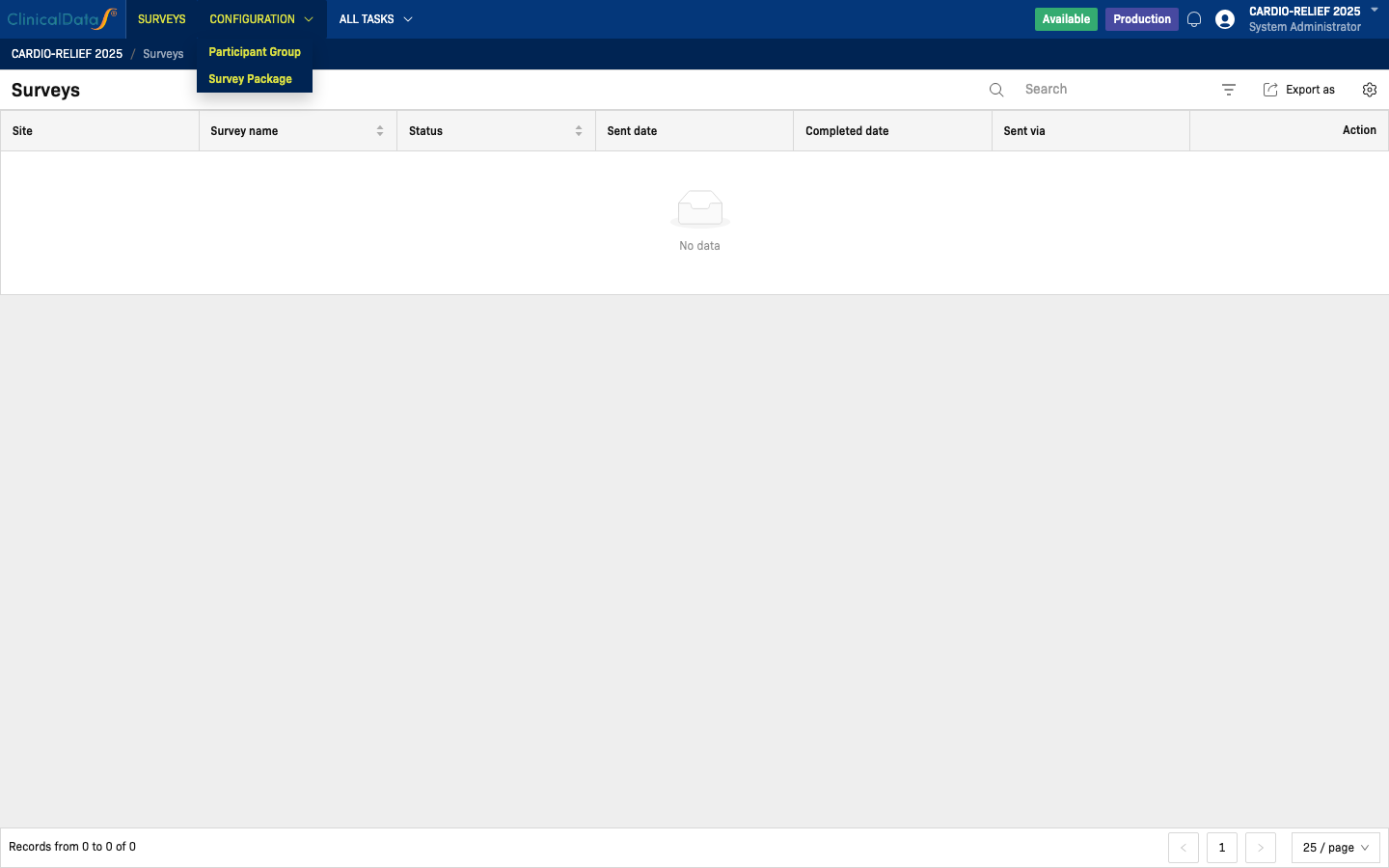
- Participant Group — create and manage groups of study subjects for survey invitation
- Survey Package — define surveys, email templates, and sending schedules
Participant Group layout (observed)
Participant Group (Configuration → Participant Group) lists all participant groups created for the study.
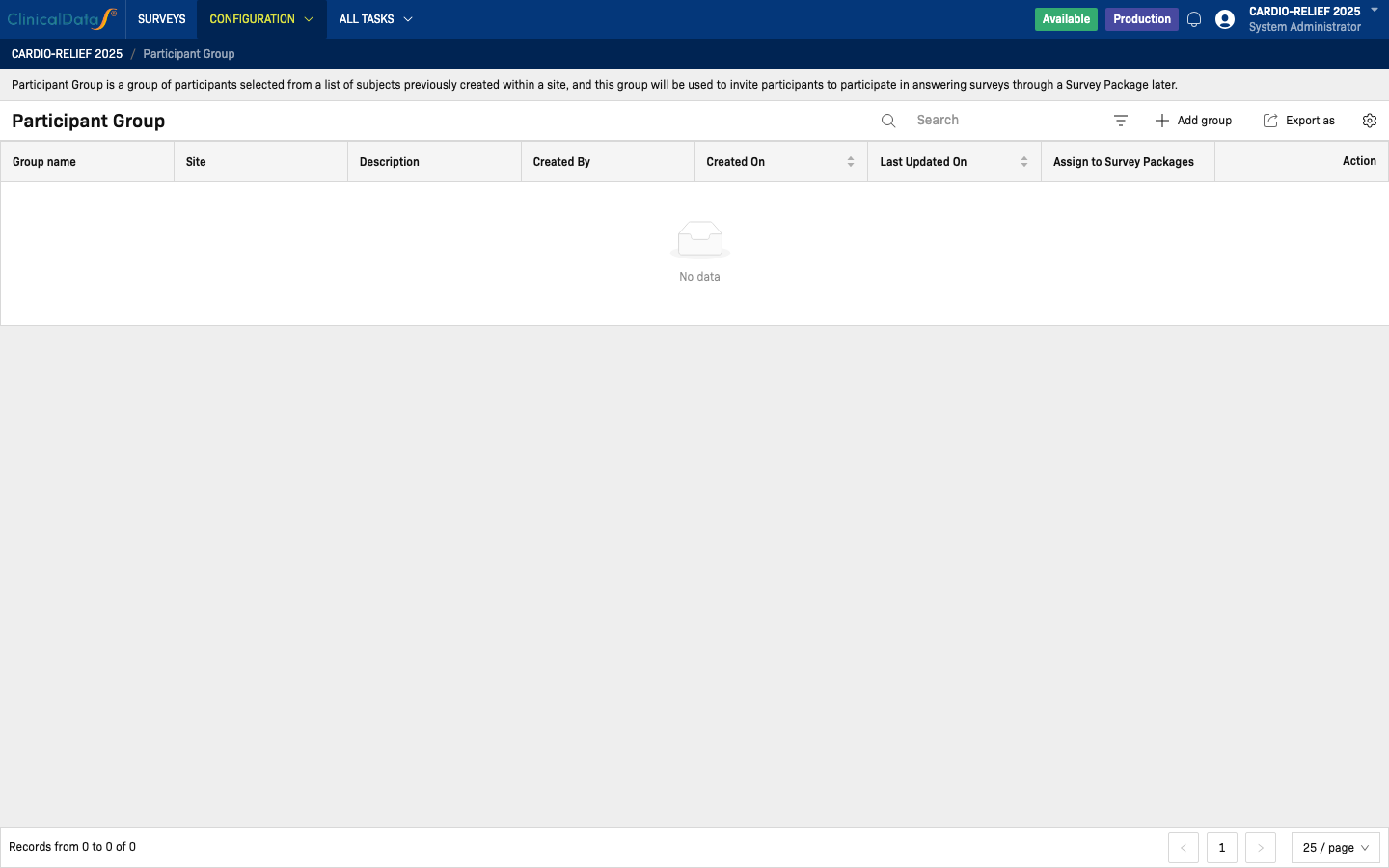
Participant Group is a group of participants selected from a list of subjects previously created within a site. This group is used to invite participants to answer surveys through a Survey Package.
Table columns:
| Column | Description |
|---|---|
| Group name | Name of the participant group |
| Site | Site the group belongs to |
| Description | Optional description |
| Created By | User who created the group |
| Created On | Creation date |
| Last Updated On | Date of the most recent change |
| Assign to Survey Packages | Survey packages this group is linked to |
| Action | Edit or delete options |
Actions available from the toolbar: + Add group, Export as.
Survey Package layout (observed)
Survey Package (Configuration → Survey Package) manages the packages that bundle surveys with delivery rules.
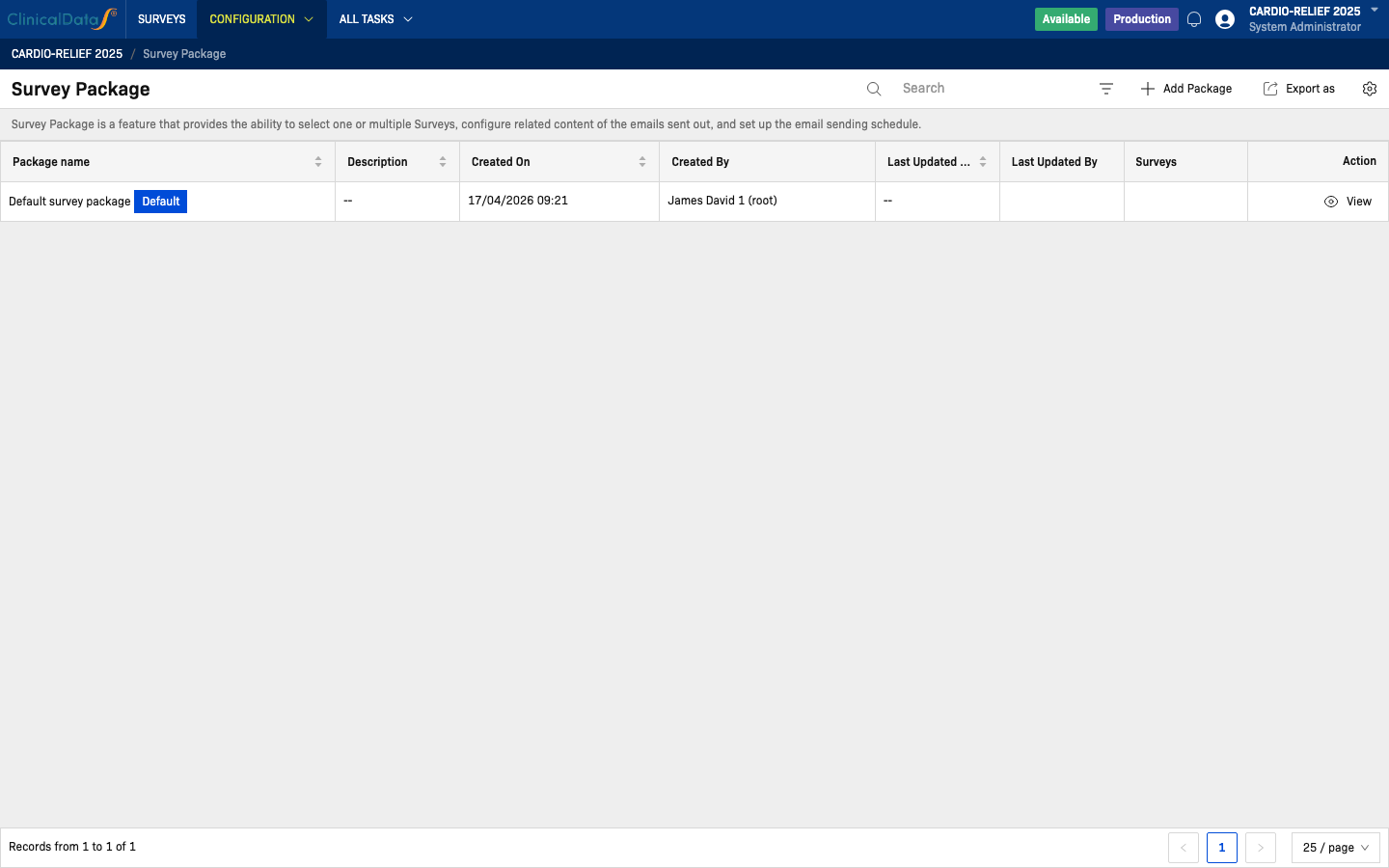
Survey Package is a feature that provides the ability to select one or multiple surveys, configure the email content sent out, and set up the email sending schedule.
Table columns:
| Column | Description |
|---|---|
| Package name | Name of the survey package (a Default badge marks the system default) |
| Description | Optional description |
| Created On | Creation date |
| Created By | User who created the package |
| Last Updated On | Date of the most recent change |
| Last Updated By | User who last modified the package |
| Surveys | Number of surveys included in this package |
| Action | View to inspect or edit the package |
Actions from the toolbar: + Add Package, Export as.
In the observed study, one record exists: Default survey package (tagged Default), created on 17/04/2026 by James David 1 (root).
Relationship to configuration
Survey records appearing in the Surveys worklist are driven by Survey Packages and Participant Groups set up under Configuration. If no surveys are listed, verify that at least one Survey Package has been created and a Participant Group has been assigned and triggered. See Configuration for full setup details.
Related topics
- Configuration — Survey library, event mapping, participant group, and survey package setup
- CDS Mobile App — Participants can also complete surveys via the ClinicalDataS mobile app
Survey Response Data
Viewing Responses
Survey responses are captured as CRF data. To review responses:
- Open the participant's record from Subjects
- Navigate to the event associated with the survey
- Open the survey CRF — responses are displayed in the form
- Use View in CRF from the Surveys worklist to jump directly
Response Status Tracking
| Status | Meaning |
|---|---|
| Sent | Survey invitation has been sent to participant |
| Opened | Participant has opened the survey link (if tracked) |
| Started | Participant has begun filling in responses |
| Completed | All required fields submitted |
| Expired | Survey link expired before completion |
| Declined | Participant chose not to participate |
Monitoring Completion Rates
- Open Surveys worklist
- Filter by status (
Sent= pending,Completed= done) - Use Export as to download completion data
- Cross-reference with Participant Group membership
Target: >80% completion rate for scheduled PRO instruments.
Survey Package Management
Survey Packages bundle one or more surveys with delivery rules.
Creating a Survey Package
- Navigate to Configuration → Survey Package
- Click + Add Package
- Configure:
| Field | Description |
|---|---|
| Package name | Display name (e.g., "Week 4 PRO Battery") |
| Description | Purpose and contents summary |
| Surveys | Select one or more surveys to include |
| Participant Groups | Assign groups to receive this package |
| Email template | Customize invitation email subject and body |
| Schedule | Set send date/time or trigger event |
Scheduling Options
| Schedule Type | Description |
|---|---|
| Manual | Send on demand by clicking Send |
| Scheduled | Send at specific date/time |
| Event-triggered | Send when a study event occurs (e.g., Enrollment) |
| Recurring | Send at regular intervals (e.g., weekly, monthly) |
Default Package
The Default survey package is the fallback for surveys not explicitly assigned to another package. Configure it with standard email templates and assign the broadest participant group.
Participant Group Management
Participant Groups define which subjects receive surveys.
Creating a Participant Group
- Navigate to Configuration → Participant Group
- Click + Add group
- Configure:
| Field | Description |
|---|---|
| Group name | Display name (e.g., "Arm A — Treatment") |
| Site | Restrict to a specific site or all sites |
| Description | Group purpose and selection criteria |
| Members | Select subjects from the list |
Group Strategies
| Strategy | How to Configure | Use Case |
|---|---|---|
| All subjects | Select all enrolled subjects | Study-wide surveys |
| By treatment arm | Filter by treatment arm | Arm-specific PROs |
| By site | Select one site | Site-level surveys |
| By event | Filter by subjects at specific event | Event-triggered surveys |
| Custom | Manually select individual subjects | Targeted follow-up |
Export & Reporting
Export Survey List
- From the Surveys worklist, click Export as
- Choose format: CSV or Excel
- Export includes: Site, Survey Name, Status, Sent Date, Completed Date, Participant ID
Survey Completion Report
To generate a completion report:
- Filter the Surveys worklist to the desired date range
- Export and analyze in Excel
- Key metrics: sent count, completed count, completion rate, average time to complete