Study Audit Logs is the subject-level audit history for a study: for any subject, it shows every recorded change to that subject's status, personal data, events, and CRFs (including individual field/item values), and lets you export the full history to Excel.
Path: Study Name → Audit Logs in the top menu, or All Tasks → Data Compliance → Study Audit Logs
This page is easy to confuse with two other, unrelated features:
- Audit Login records system login attempts (success/failure, IP, source) — it has nothing to do with subject or study data.
- The Audit Trail panel on Visit Detail shows the change history for a single visit only. Study Audit Logs covers a subject's entire record — every event and every CRF — not one visit.
Study Audit Logs List
The list page is a subject picker: select a subject here to open that subject's full audit history. It reuses the same subject data as the study's Subjects list.
| Column | Description |
|---|---|
| Subject ID | The subject identifier, under the label the study sets for its subjects (for example Participant). Rendered as a link to the subject's audit history. |
| Status | The subject's current status |
| Site Name | The subject's enrolled site (hidden on single-site studies) |
| Created On | Date/time the subject record was created |
| Created By | The user who created the subject record |
| Last Updated On | Date/time of the last change to the subject record |
Filters: Subject ID (text search), Status (checkbox: Available, SDV, Signed, Removed, Locked), Created Date (date range).
Actions: View opens the subject's audit history.
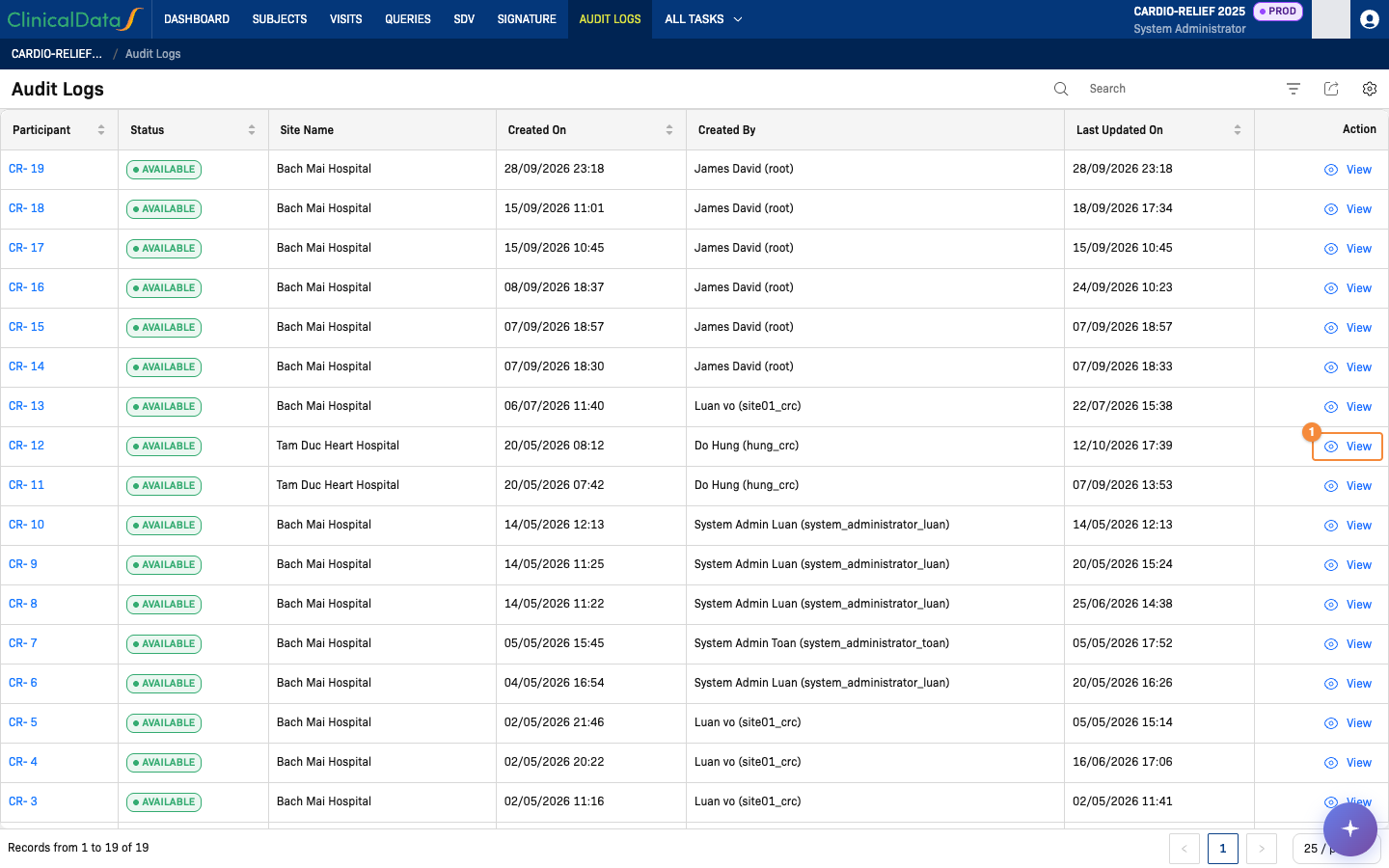
- View opens the audit history of the subject
Audit Log Detail
Opening a subject (via the Subject ID link or the View action) opens that subject's audit history, made up of the subject header with the EXPORT action and the Subject Audit and Study Event Audit sections.
Information & Export
The header shows the subject's information (Subject ID, status, site, date of enrollment and, on randomized studies, the randomization code, randomized date and study group) and the EXPORT action.
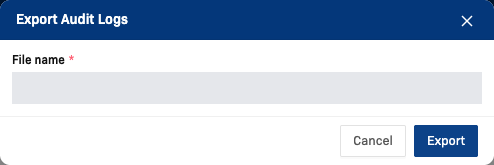
EXPORT opens the Export Audit Logs dialog to name the output file (File name, required); Export in the dialog then generates a multi-sheet Excel workbook covering the subject's full audit history:
- A Subject Information sheet, containing the subject's information, a Subject Audit table (Audit Event, Local Date/Time, User, Value Type, Old Value, New Value), and a summary Study Event Audit table (Study Event, Event Type, Event Status, Location, Start Date, Occurrence Number).
- One additional sheet per event (visit) the subject has, each containing:
- The event's general information (Name, Location, Completed Date, Start Date, End Date, Status, Occurrence Number).
- The event's status audit log (Event Status, Local Date/Time, User, Data Type, Old Value, New Value).
- For each CRF assigned to the event that has recorded audit activity: the CRF version information (CRF Name, CRF Version, Owner), its CRF-level audit log (CRF Status, Date Time, User, Data Type, Old Value, New Value), and its item/field-level audit log (CRF Data, Date Time, User, Item Label, Item Name, Old Value, New Value).
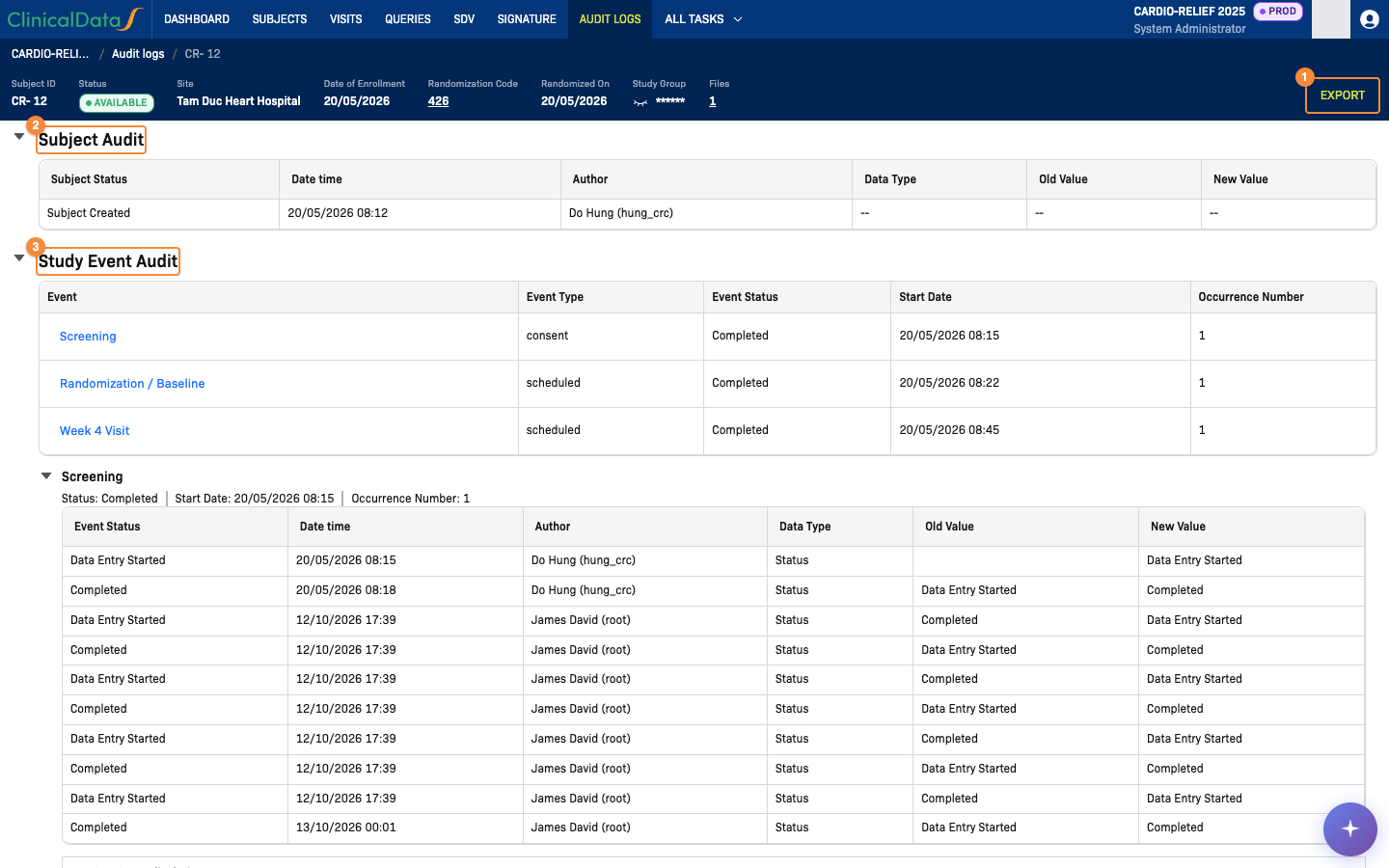
- Export the full audit history to Excel
- Subject Audit section
- Study Event Audit section
Subject Audit
Collapsible section with two tables:
| Table | Covers | Columns |
|---|---|---|
| Subject Status | Subject creation and status transitions (e.g. Subject Created, Study Subject Status Updated) | Subject Status, Date time, Author, Data Type, Old Value, New Value |
| Personal Data | Changes to subject data and site reassignment | Subject Data, Date time, Author, Data Type, Old Value, New Value |
Old/new values in the Subject Status table are rendered as the subject status label (Available, SDV, Signed, Removed, Locked, Auto-removed). A table is omitted entirely if the subject has no entries of that kind. In the screenshot under Information & Export (callout 2), the subject has no personal data changes, so only the Subject Status table appears.
Study Event Audit
Collapsible section listing every event (visit) the subject has:
| Column | Description |
|---|---|
| Event | Event name (with occurrence number appended for repeating events); clicking it scrolls to that event's detail below |
| Event Type | The event type |
| Event Status | The event's status at the time of this audit entry |
| Start Date | The event's start date |
| Occurrence Number | The occurrence index, for repeating events |
Below the summary table, each event has its own expandable detail block:
- An Event Status table (Event Status, Date time, Author, Data Type, Old Value, New Value) covering the event's own status transitions (scheduled, started, completed, stopped, signed, source-data-verified, locked, and similar).
- An Event Data table (Event Data, Date time, Author, Data Type, Old Value, New Value) covering other event-level changes (start/end date updates, location changes).
- One expandable block per CRF in the event that has recorded audit activity, each showing:
- The CRF name, its Version and the user who created it (Created By).
- A CRF Status table (CRF Status, Date time, Author, Data Type, Old Value, New Value) covering CRF-level status changes (marked complete, deleted, SDV status, properties changed, and similar).
- A CRF Data table (CRF Data, Date time, Author, Item Label, Item Name, Old Value, New Value) covering individual field/item value changes on that CRF — including values updated, skipped, deleted, or inserted into a repeating row.
A CRF's detail block is only shown if it has at least one recorded audit entry.
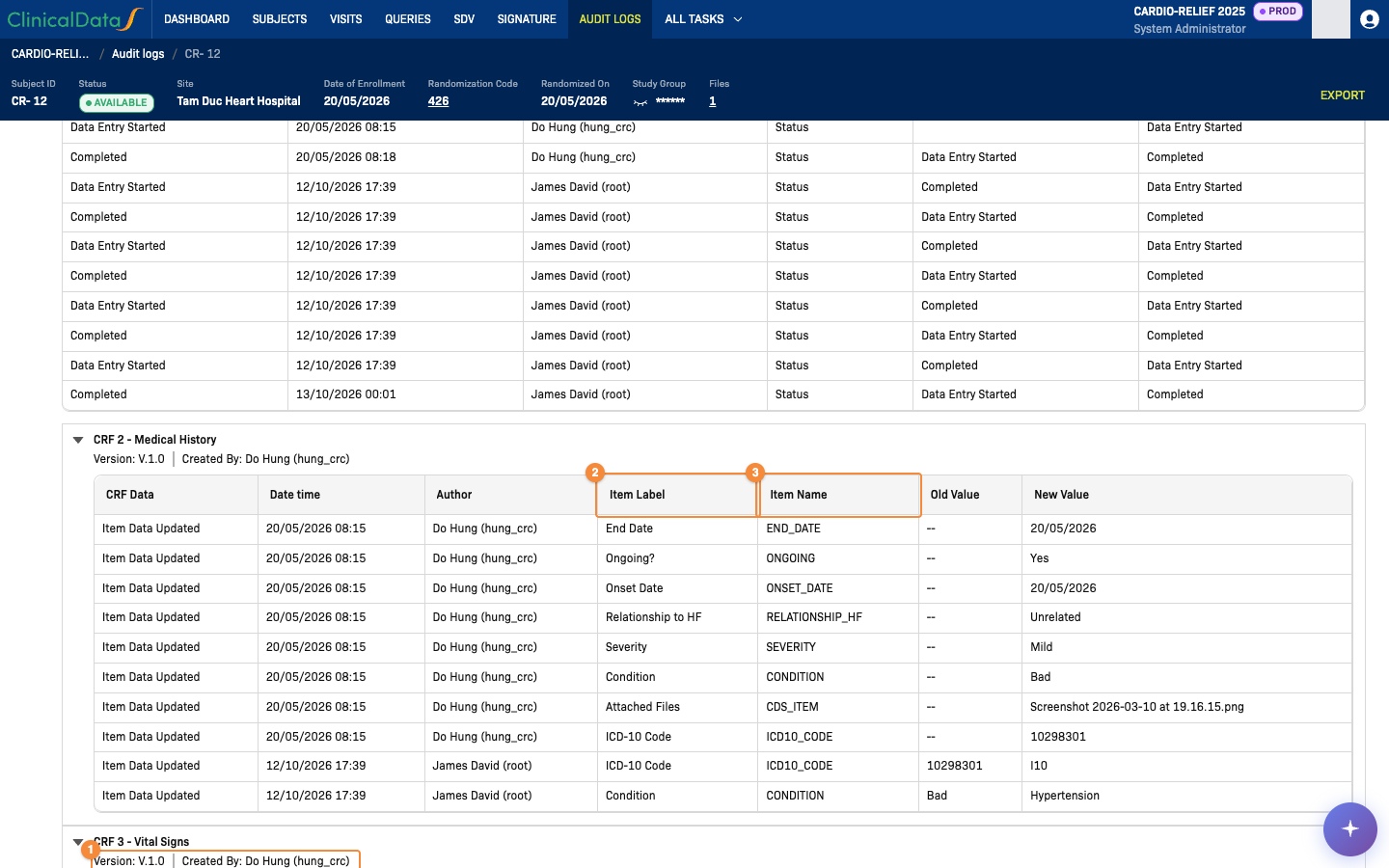
- CRF block inside the event, with its version and creator
- Item Label: the label of the field as shown on the CRF
- Item Name: the item name of the field
Permissions
| Action | Roles |
|---|---|
| View the Study Audit Logs list, open a subject's audit history (Subject ID link or View action), and review every section of the audit history, including Subject Audit and Study Event Audit | Available to 11 rolesSite MonitorStudy AdministratorStudy MonitorStudy SponsorSystem AdministratorUnblinded Supply ManagerUnblinded RTSM AdminSponsor IP Code ManagerSponsor Supply ManagerSite PharmacistSponsor Manager(default roles — your study may differ) |
A single permission governs the whole feature: a role that can open the Study Audit Logs list can also open the full audit history of every subject on its assigned sites. The audit history is read-only for every role.
For the full permission list, see the Permission Matrix.
Related Docs
- Audit Login — system-level login attempt history, unrelated to subject/study data
- Visit Detail — Audit Trail — the narrower, single-visit audit trail panel
- PHI Management — study-level Protected Health Information configuration, the other Data Compliance page