This guide covers the day-to-day flow a Clinical Research Coordinator (CRC) or Investigator follows to randomize a subject from the Subjects tab of the Randomization workspace.
Prerequisites
Before Randomize becomes available for a subject, all of the following must be true:
- The subject exists, is not removed or locked, and has not already been randomized.
- Every required question configured under Additional data before Randomization (Inclusion, Exclusion, and Open questions) has an answer. Open the subject's randomized detail page to enter these.
- Every configured stratification factor has source data available — a gender value on the subject, an answered event/CRF field, or dynamic data, depending on how the stratification factor is defined.
The subject's status on the Subjects tab reflects this: Ready means eligibility checks have passed and the subject is awaiting randomization; Failed means one or more checks did not pass.
The Randomized Subject Detail page shows each requirement with its Status. The example below is a subject that has already been randomized.
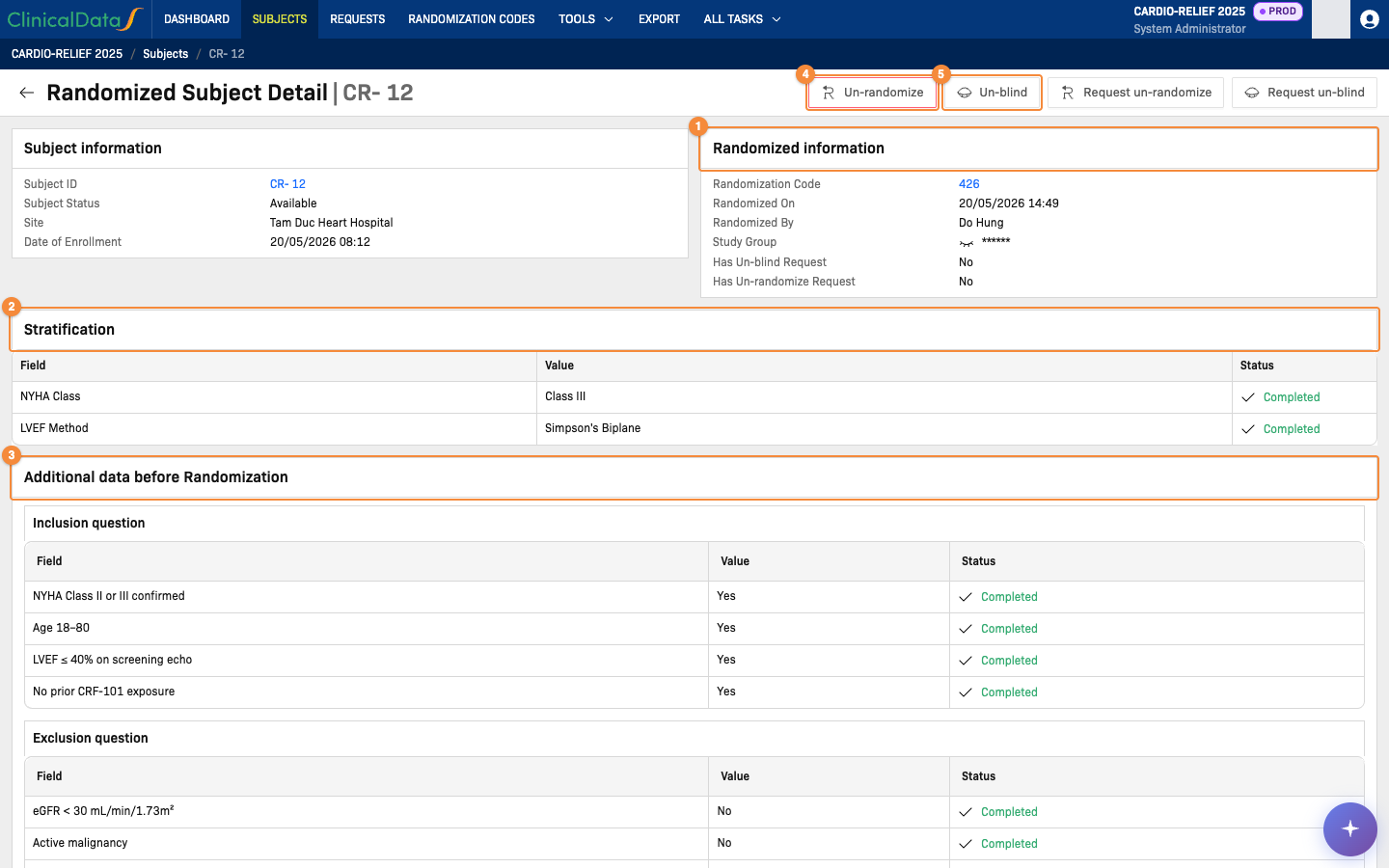
- Randomized information: code, date, user and the masked study group
- Stratification: the value of each stratification factor and whether it is complete
- Additional data before Randomization: the answer to each inclusion, exclusion and open question
- Un-randomize the subject (roles with direct permission)
- Un-blind the subject (roles with direct permission)
Randomize a subject
- From the Subjects tab, open the subject's record.
- Confirm all inclusion, exclusion, and open question answers, and all stratification data, are complete.
- Click Randomize.
- In the confirmation dialog, confirm the subject identifier is correct, then confirm.

What this should show: The Randomize confirmation dialog ("Are you sure you want to Randomize subject <Subject ID>?") opened from the subject's Action menu.
Result
On success, the subject's randomized information updates with:
- Randomization Code — the code assigned to the subject, linking to the randomization code detail page.
- Randomized On / Randomized By — the timestamp and user who performed the randomization.
- Study Group — the assigned treatment arm. This value is masked by default (displayed as
******, callout 1 in the screenshot above); click the eye icon next to it to reveal the treatment arm name, and click again to re-mask it.
Error scenarios
If randomization cannot be completed, the system reports one of the following:
| What you see | Cause | What to do |
|---|---|---|
| Study subject is not available | The subject has been removed or locked. | Confirm the subject's status before retrying; a locked or removed subject cannot be randomized. |
| Study is not available | The subject's site has been removed or locked. | Confirm the site's status; randomization cannot proceed while the site is unavailable. |
| Already randomize study subject | The subject already has an active randomization record. | No action needed — the subject is already randomized. Check the Randomized information panel for the existing assignment. |
| Answer is required | A required question (Inclusion, Exclusion, or Open) was left blank. | Complete the missing answer, then retry. |
| Answer is incorrect | An Inclusion or Exclusion question's answer does not meet the configured eligibility condition for that question. | The subject does not meet the eligibility criteria as answered. Review the answer with the Investigator before proceeding; this reflects the subject's actual Failed eligibility status. |
| Field is required | A configured stratification factor has no source value (missing gender, an unanswered event/CRF field, or missing dynamic data). | Enter the missing source data, then retry. |
| Treatments are required | The study's randomization configuration does not have at least two treatment arms available. | This is a study configuration issue — contact the Study Administrator. |
After randomization: IMP dispense may be blocked by stock
Randomizing a subject assigns a treatment arm, but it does not guarantee that IP stock is available to dispense. When a site user clicks Generate to assign a serial-numbered kit for the visit (Data Entry → Randomization section), the system looks for an available kit at that subject's site for the assigned treatment arm. If none exists, the Generate click fails with:
Serial number is not available
When this happens, the serial number field stays empty and dispensing cannot proceed for that subject until stock is resupplied for that site and treatment-arm combination. This is a supply-chain condition, not a randomization error — the subject's randomization record and treatment-arm assignment are unaffected.
See Dispenses — Randomization Mode for the full dispense workflow and this stock-gating behavior.