The Randomization module supports exactly two request types: un-blind and un-randomize. Both share the same request-and-review structure — submit with a reason, then a Study Administrator or System Administrator reviews and approves or rejects. There is no separate "emergency" request category, no service-level timer, and no multi-stage review; the two types differ only in what happens when the action is approved.
For each type there are two independent paths to the same outcome:
- A direct action, available only to Study Administrator and System Administrator, with no review step.
- A submitted request, available to a wider set of roles, that requires Study Administrator or System Administrator review before it takes effect.
Flow at a glance
The un-blind flow is shown below; un-randomize follows the same two paths, with Un-randomize and Request un-randomize in place of the un-blind actions.
A request carries one of these statuses on the Requests tab:
A request still in Requested status shows as Unavailable when the subject has been un-randomized or re-randomized since the request was submitted; it can no longer be approved or rejected. Approved and rejected requests are final.
Roles and permissions
| Action | Roles |
|---|---|
| Un-blind (direct) | Available to:Study AdministratorSystem Administrator(default roles — your study may differ) |
| Un-randomize (direct) | Available to:Study AdministratorSystem Administrator(default roles — your study may differ) |
| Request un-blind | Available to 7 rolesClinical Research CoordinatorInvestigatorSite MonitorStudy MonitorStudy SponsorSystem AdministratorSponsor Manager(default roles — your study may differ) |
| Request un-randomize | Available to 7 rolesClinical Research CoordinatorInvestigatorSite MonitorStudy MonitorStudy SponsorSystem AdministratorSponsor Manager(default roles — your study may differ) |
| Approve / reject un-blind request | Available to:Study AdministratorSystem Administrator(default roles — your study may differ) |
| Approve / reject un-randomize request | Available to:Study AdministratorSystem Administrator(default roles — your study may differ) |
Study Administrator and System Administrator are the only roles that can approve, reject, or act directly — no other role, including roles with broad randomization visibility, holds an approval or direct-action permission for this workflow.
For the full permission reference, see Permission Matrix.
Direct action (Study Administrator / System Administrator)
If your role can un-blind or un-randomize directly (by default, Study Administrator and System Administrator), you can act on a subject without submitting a request:
- On the Subjects tab, click View on the subject to open the Randomized Subject Detail page.
- Click Un-blind or Un-randomize in the page header.
- Confirm in the dialog by clicking Un-blind or Un-randomize again. No reason is required for a direct action.
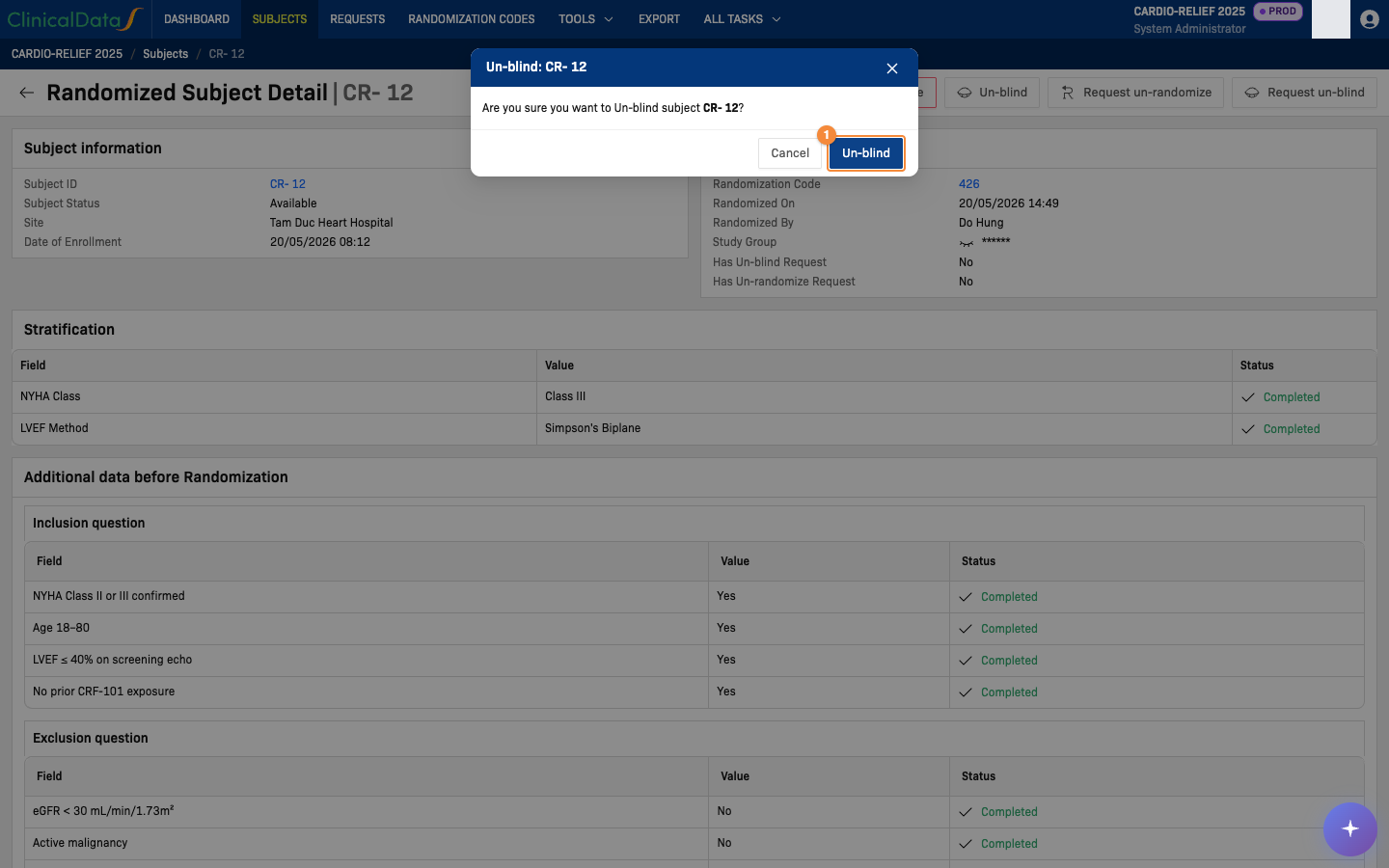
- Confirm the un-blind
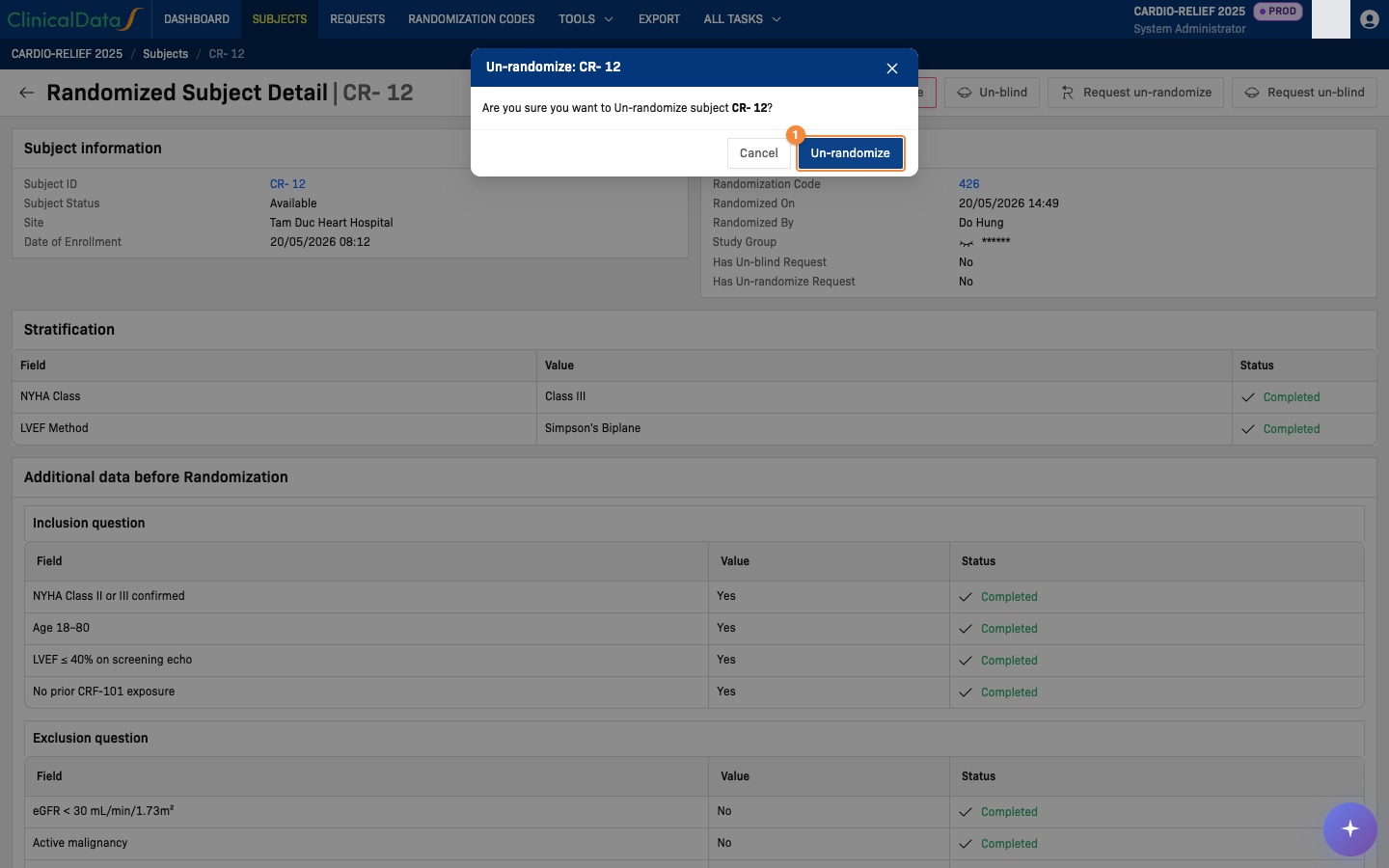
- Confirm the un-randomize
Submit a request
If you do not hold the direct-action permission but hold the corresponding request permission:
- On the Subjects tab, click View on the subject to open the Randomized Subject Detail page.
- Click Request un-blind or Request un-randomize in the page header.
- Enter a Request reason — this field is required; the request cannot be submitted without it.
- Click Send request.
The request appears on the Requests tab with status Requested, and on the subject's own record, until a Study Administrator or System Administrator reviews it.
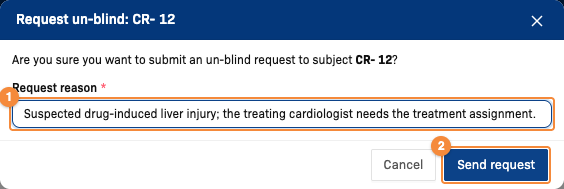
- Reason for the request (required)
- Submit the request for review
Reviewing a request
A Study Administrator or System Administrator can review a request from either of two places, and the two places behave slightly differently:
- Requests tab or request detail page — use the row actions on the Requests tab, or open the request's detail page and use the Approve / Reject buttons in the header. Both surfaces open the same modal, titled Approve
<request type>or Reject<request type>, with a Reason field that is required. - Subject's own record — the subject's detail page has its own Requests panel listing requests for that subject. Approving or rejecting from here opens a modal titled Approve un-blind request / Approve un-randomize request (or the Reject equivalent), with a Review message field that is optional.
Use the Requests tab or the request detail page when a reason needs to be on record for every review decision; the subject-level panel does not enforce one.
On the Requests tab, the Approve modal names the request type and the subject, with the required Reason field:
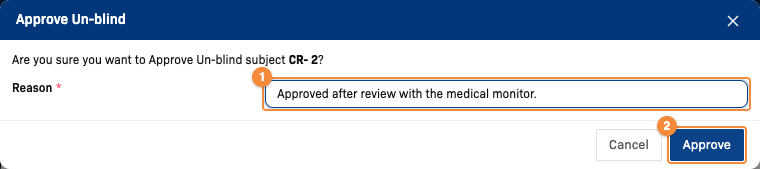
- Enter the reason for the decision (required)
- Approve the request
The request detail page opens from the Requests tab. It shows the subject's details, the randomization details and the request itself, with Reject and Approve in the header while the request is in Requested status:
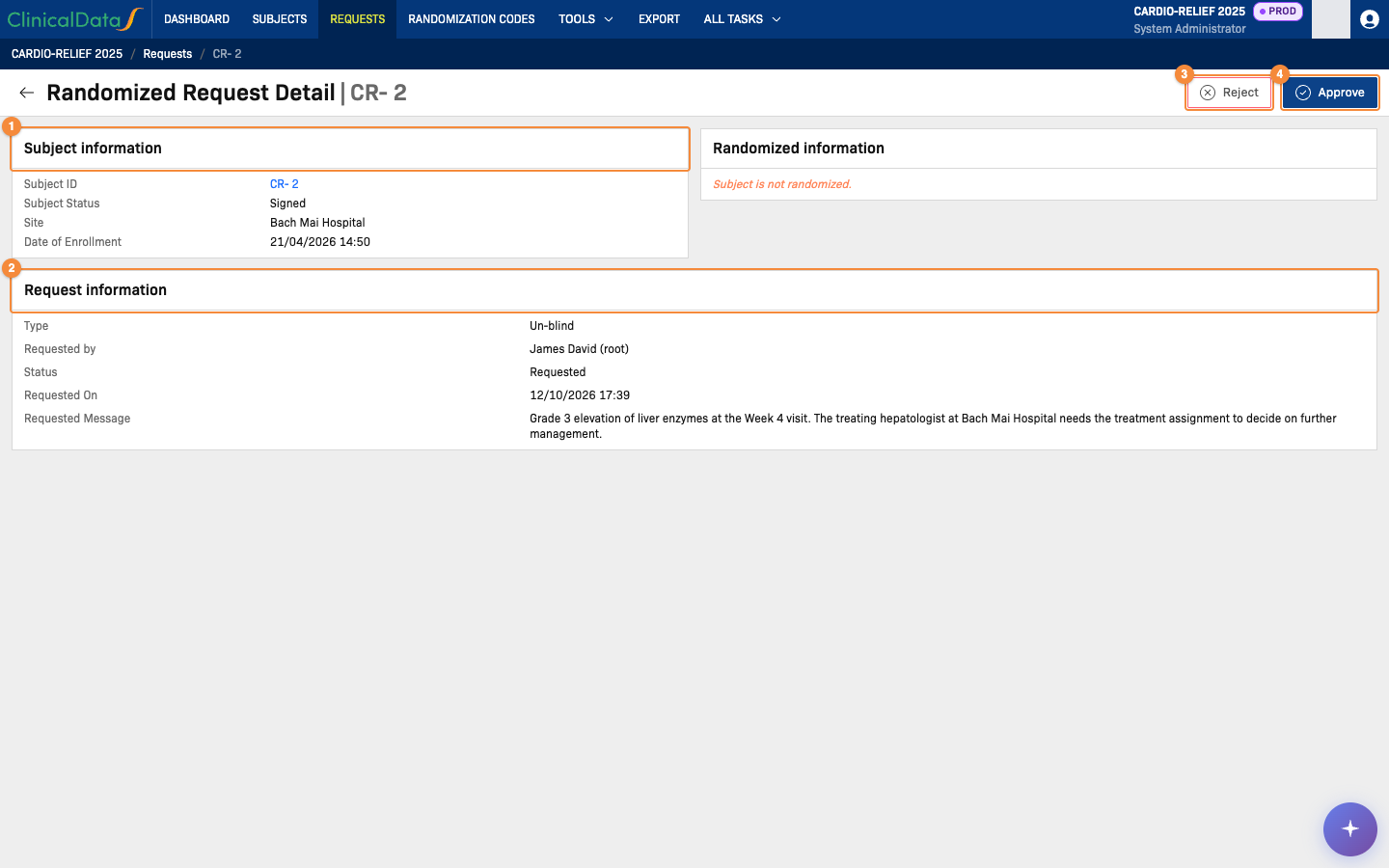
- Subject information: subject ID, status, site and date of enrollment
- Request information: type, requester, status, request date and the requester's message
- Reject the request
- Approve the request
Effect of approval
Un-blind
Approving (or directly performing) an un-blind sets a flag on the subject's randomization record — nothing else about the subject's data changes. This flag is the audit record that an authorized un-blind took place; it is not, by itself, a technical access gate. The treatment/study-group value is generally reachable through the eye-toggle in the Study Group column for anyone with dashboard or view-level access to randomization, independent of this flag.
Un-randomize
Approving (or directly performing) an un-randomize:
- Frees the randomization code back to Available status, making it eligible for assignment to a different subject.
- Clears the subject's randomization association (treatment arm, randomization code, randomization date).
Un-randomizing a subject does not check for, reconcile, or flag any investigational product already dispensed to that subject. If IP was dispensed before the un-randomization, the dispense record is left exactly as it was — nothing about it is reversed or marked for review. Account for any prior dispenses manually before or after un-randomizing a subject.