Overview
Form Builder offers two separate ways to use AI when authoring a CRF:
- Generate with AI — a method offered when you create a new CRF, which drafts the entire form from a text prompt and/or an uploaded PDF.
- AI Chat — a chat panel available while editing an existing CRF, which adds, edits, or deletes items on the open canvas in response to your messages.
These are two distinct tools with different mechanics and different element-type coverage. Read both sections below before relying on either one to produce a specific element type, and see Element Type Coverage for exactly which of the platform's 28 element types each method can produce correctly.
Generate a New CRF with AI
Where to Find It
- Open Form Builder and click Create New CRF. The Create a new CRF dialog opens.
- Enter a CRF Name.
- Select Generate with AI ("Let our AI instantly create the entire form from your prompt or data").
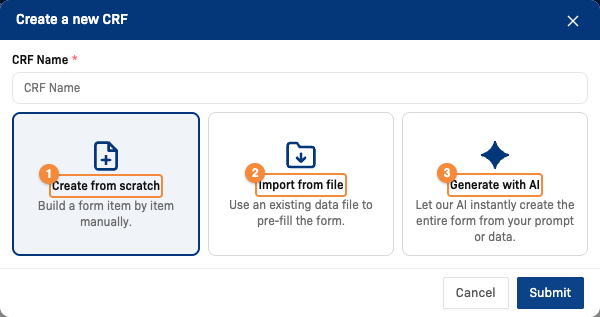
- Build the CRF item by item
- Pre-fill the CRF from an existing data file
- Let AI draft the whole CRF
When Generate with AI is selected, the dialog shows the Prompt (optional) and Upload a PDF (optional) fields:
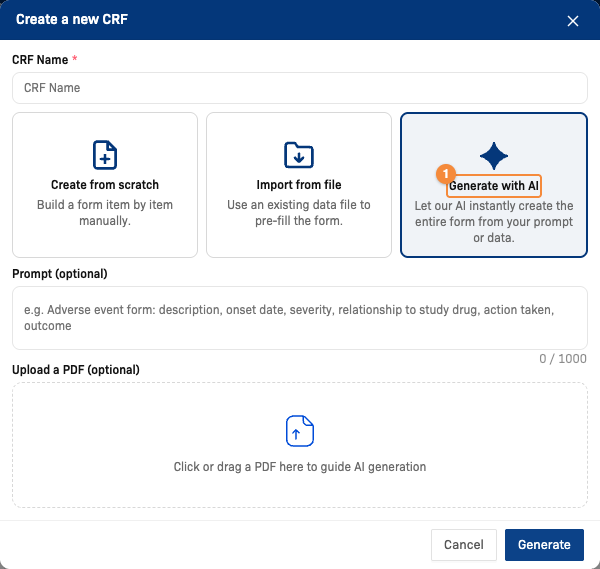
- Generate with AI selected
What You Provide
- Prompt (optional) — free text guiding what the CRF should contain, for example a description of the assessment or the source document, up to 1,000 characters. The field placeholder shows an example: "e.g. Adverse event form: description, onset date, severity, relationship to study drug, action taken, outcome".
- Upload a PDF (optional) — a single PDF file to extract the CRF from. Only PDF files are accepted; image files (JPG, PNG, screenshots) are not supported as an input to this method.
You must provide at least a prompt or a PDF to continue.
What Happens
Select Generate to send your prompt and/or PDF to the AI. The dialog shows a live status while the AI is working, followed by the generated response text, then opens the new CRF directly in the editor with the sections and fields the AI produced. Review the draft carefully before relying on it — see Element Type Coverage below for what to check.
Access
Generating a CRF with AI requires this AI feature to be enabled for your study. If it is not enabled, the Generate with AI option is not usable and you will see an error if you attempt to submit.
Update an Open CRF with AI Chat
Where to Find It
While editing an existing CRF, the side panel rail on the right of the editor has Properties, AI Chat, Rules and Errors. Select AI Chat to open the chat panel.

What this should show: the CRF editor with AI Chat selected in the right side panel rail and the chat panel open, with an example conversation showing a requested field being added to the canvas.
How It Works
Type a message describing what you want changed — for example, adding a new field, editing an existing field's label or options, or removing a field. As the AI replies, it applies each change directly to the currently open canvas: adding, editing, or removing items and groups by their field code. There is no separate step to accept each change before it appears on the canvas.
Changes made through AI Chat are not persisted until you use the CRF editor's own Save action, the same as any manual edit made in Design view.
Access
AI Chat requires this AI feature to be enabled for your study, in the same way as Generate with AI.
Element Type Coverage
Form Builder has 28 element types across four categories: Basic, Advanced, Group, and Clinical (see Element Reference for the full list). The two AI methods on this page do not cover these types equally — review the tables below before using either method to generate a CRF that includes anything beyond simple text, date, or choice fields.
Generate with AI (New CRF)
Roughly 17 of the 28 element types render as their correct, distinct widget when generated this way — the remaining elements below are generated as a different, simpler element instead:
| Requested element | What you get instead |
|---|---|
| Slider | Short Text |
| VAS | Short Text |
| Image Map | Short Text |
| Group | Short Text |
| Table | Short Text |
| Matrix | Short Text |
| Embedding | Short Text |
| Blood Pressure | Short Text |
| BMI | Short Text |
| Vital Sign | Short Text |
| Signature | File Upload (generic upload field, not a dedicated signature capture) |
For example, asking the AI to generate a PHQ-9-style scale — normally built as a single Matrix element with one row per question — currently produces nine separate plain Short Text fields instead of one Matrix.
Recommendation: after generating a CRF with this method, review the draft in Design view and manually replace any of the elements above with the correct element type before finalizing the CRF version.
AI Chat (Update CRF)
AI Chat covers substantially more of the element catalog. It correctly creates every element in the table above that Generate with AI cannot:
| Element | Created via AI Chat as |
|---|---|
| Slider | Slider |
| VAS | VAS |
| Image Map | Image Map |
| Signature | Signature (dedicated signature field) |
| Group | Group |
| Table | Table |
| Matrix | Matrix |
| Embedding | Embedding |
| Blood Pressure | Blood Pressure |
| BMI | BMI |
| Vital Sign | Vital Sign |
If you need one of these element types today, generate the initial CRF with Generate with AI as usual, then open the CRF in the editor and use AI Chat to ask for the specific element you need (for example, "add a Matrix with these rows..." or "add a Slider for pain score") instead of trying to get it right in the one-shot generation.
Tiny Editor and Prescription — Not Available via Either Method
Two element types, Tiny Editor and Prescription, cannot be created by either Generate with AI or AI Chat. Add these two elements manually in Design view if your CRF needs them.
Related Docs
- AI Features — overview of all AI-assisted capabilities in ClinicalDataS
- CRF Management — create, view, version, share, and delete CRFs
- Build a Complete CRF — full manual editor guide, including the Element Reference