Delivery to Site (PSP mode — By Unique Serial Number)
A delivery request transfers investigational product (IP) kits from a Site Pharmacy (acting as the local warehouse) to a Clinical Research Site. This page covers PSP (Patient Support Program) studies configured with Tracking method = By Unique Serial Number, where any available serial number for a product can be selected — there is no treatment-arm filter.
Navigate: IMP → Transfer → Delivery to Site
- Study status must be Available.
- IP kits must already be received into the source Site Pharmacy — see Receipts — before they can be delivered to a site.
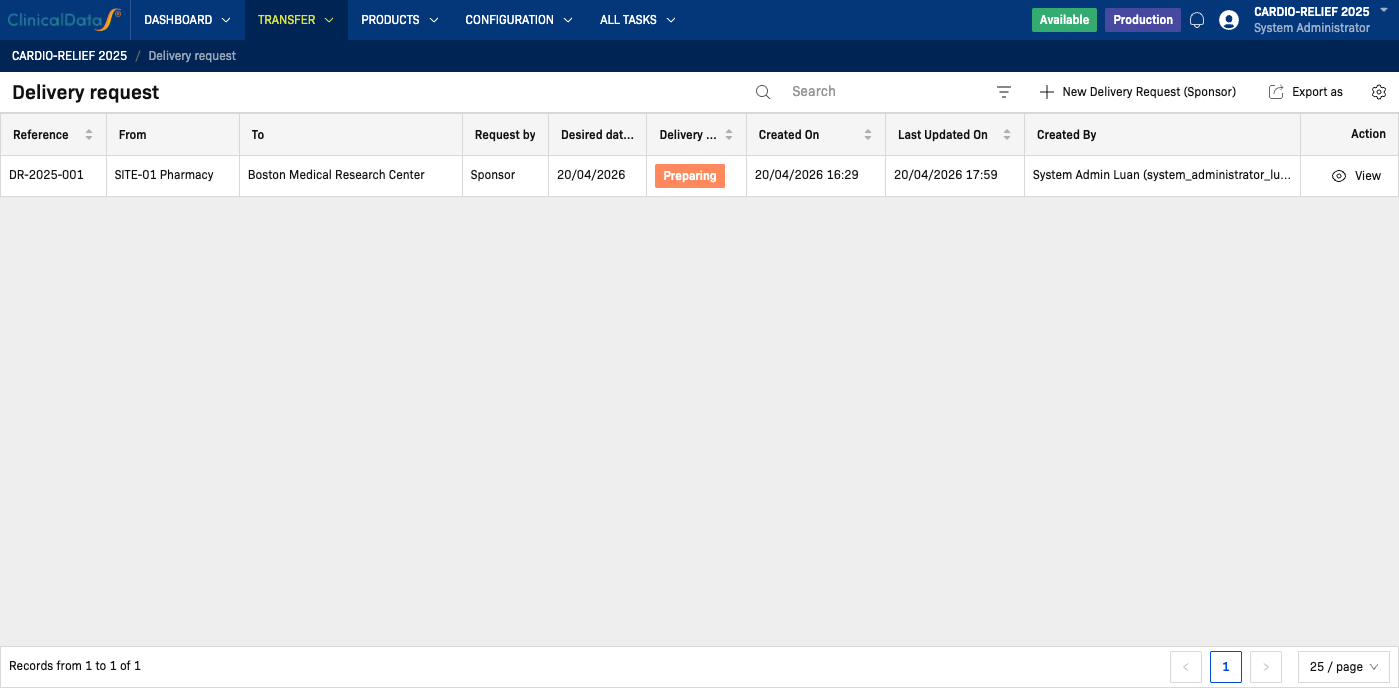
Delivery request list
The list shows every delivery request for the study:
| Column | Description |
|---|---|
| Reference | Delivery request reference number (sortable) |
| From | Source Site Pharmacy (warehouse) |
| To | Destination Clinical Research Site |
| Request by | Whether the request was created by the Sponsor or by the Site |
| Desired date of delivery | The requested delivery date |
| Delivery status | Current step in the delivery workflow (sortable) |
| Created On / Last Updated On | Sortable timestamps |
| Created By | User who created the request |
| Action | View |
Use Search to filter by reference or site name, or apply the Status, Created date, From, and To filters. Click the export icon in the toolbar to download the list.
Create a new delivery request
Click New Delivery Request (Sponsor) to open the wizard.
Step 1 — Delivery information
| Field | Description |
|---|---|
| Reference | Optional reference code for this delivery request |
| From | Source Site Pharmacy |
| To | Destination Clinical Research Site |
| Desired date of delivery | Expected delivery date. Click Now to use today's date |
| Note | Optional context about the delivery |
| Attachments | Optional supporting documents |
Choose products — PSP studies can carry more than one product. Add a row per product (Product, Unit — auto-populated, Demand) and click More product to add additional rows.
Click Save to save the request in Draft status and proceed to Step 2.
Step 2 — Detailed Operation
This is where PSP Serial mode differs from both Randomization mode and PSP Lot mode.
Both PSP Serial mode and Randomization mode present a dual-list "Available / Selected Kits" picker, but they behave differently:
- PSP Serial mode (this page): one picker block per product, listing every available serial number for that product at the source Site Pharmacy. There is no treatment-arm/RTSM filter — any available serial number can be selected.
- Randomization mode: the picker is split into one block per treatment arm, and only shows kits eligible for that specific arm.
If this study uses PSP, kit selection is not scoped to a treatment arm. Do not assume a delivery is limited to any one arm the way it is in Randomization mode.

What this should show: the Detailed Operation screen for a PSP Serial-mode delivery request in Draft status, with one Available/Selected Kits block per product (no treatment-arm subdivision) and its [selected / required] counter.
Understanding the layout
For each product added in Step 1, one panel pair is shown:
| Panel | Description |
|---|---|
| Available | IP codes at the source Site Pharmacy currently eligible for transfer, for this product |
| Selected Kits | Kits chosen for this delivery, for this product |
Each product block shows a counter such as [0 / 3], derived from the demand entered in Step 1 for that product.
Columns shown in each panel: Serial number and Expired date (if the study tracks expiration dates).
Selecting IP codes
- In the Available panel for a product, check the checkbox next to each serial number to include.
- Click Move to select to move the checked kits to the Selected Kits panel. The counter updates.
- Repeat for every product added in Step 1.
To remove a kit from Selected Kits, check it there and click Remove — it returns to Available.
Confirming the selection
Once every product block shows the required count, click Delivery confirmation. An e-signature dialog opens — enter your Username (pre-filled) and Password, then click Confirm delivery. The request status changes from Draft to Prepared.
Click Reject to cancel the request at this stage (with an optional reason).
Step 3 — Warehouse Prepare
The Warehouse Manager reviews the confirmed kit selection and physically prepares the kits for shipment.
| Action | Description |
|---|---|
| Delivery confirmation | Confirms the kits have been prepared and are ready to ship |
| Reject | Rejects the delivery request (with reason) |
Once confirmed, the request advances to Step 4 — On Delivery.
Step 4 — On Delivery
The kits are in transit to the Clinical Research Site. When the site receives the shipment, a site user opens Delivery Confirmation at Site.
| Field | Required | Description |
|---|---|---|
| Completion date of delivery | Yes | The date the delivery was physically received |
| Attachments | No | Supporting documents (e.g., delivery note) |
| Comment of delivery | No | Free-text remark |
| Shipping Error | No | Yes/No — whether anything was omitted or damaged in transit |
If Shipping Error = Yes, the dialog adds a discrepancy checklist per product: an Omitted list and a Damaged list of the individual serial numbers that were not received intact. Check the affected serial numbers in each list, then enter your Username and Password and click Validate to confirm.
What this should show: the Delivery Confirmation at Site dialog with Shipping Error set to Yes, showing the per-serial-number Omitted and Damaged checklists for a PSP-mode product.
Step 5 — Validated
The request is marked Done. The page shows a read-only summary of the request across every stage — Sponsor selection, warehouse preparation, and the site's confirmation — including any omitted or damaged kits reported in Step 4.
Delivery request statuses
| Status | Description |
|---|---|
| Draft | Request created; Sponsor is selecting kits (Steps 1–2) |
| Prepared | Kit selection confirmed by Sponsor; Warehouse Manager is preparing shipment (Step 3) |
| On delivery | Kits are in transit (Step 4) |
| Done | Delivery confirmed at the destination site (Step 5) |
| Rejected | Request was rejected at a review step |
| Cancelled | Request was cancelled |
Who can act at each step
| Step | Action | Roles |
|---|---|---|
| 1 — Delivery information | Create the delivery request | Study Administrator, Study Sponsor, System Administrator, Unblinded Supply Manager, Sponsor Supply Manager |
| 2 — Detailed Operation | Confirm delivery or Reject | Study Administrator, Study Sponsor, System Administrator, Unblinded Supply Manager, Sponsor Supply Manager, Sponsor Manager |
| 3 — Warehouse Prepare | Confirm preparation or Reject | Study Administrator, Study Sponsor, System Administrator, Sponsor Supply Manager, Warehouse Manager |
| 4 — On Delivery | Confirm receipt at the site | Clinical Research Coordinator, Investigator, Study Administrator, Study Sponsor, System Administrator, Sponsor Supply Manager, Site Pharmacist |
For the full permission reference, see the Permission Matrix.
Related Docs
- Delivery to Site — By Lots
- Studies using Randomization mode instead: For Randomization Study — Delivery to Site